WinPrune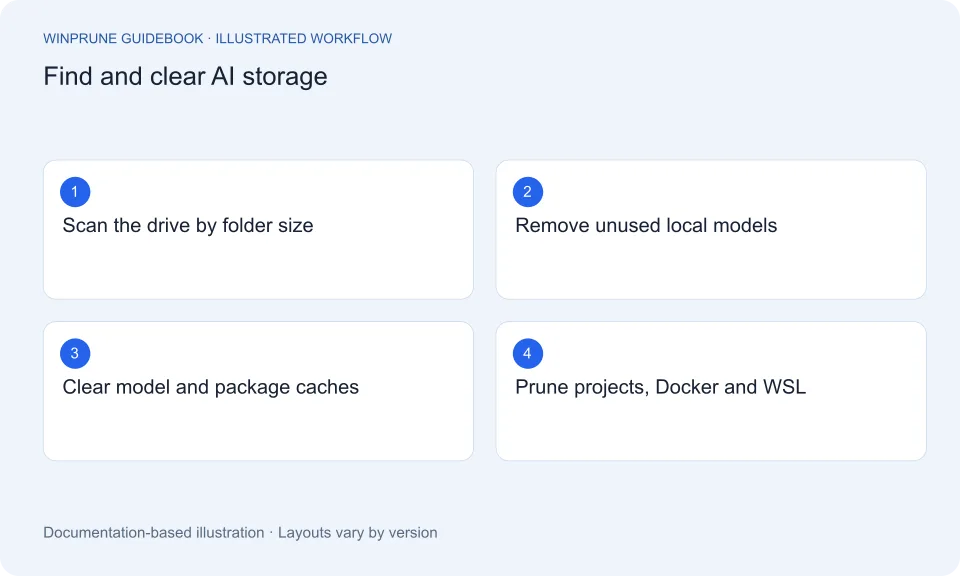
A year ago, a full C: drive usually meant games, videos or old downloads. Today it is just as likely to be AI. Running a model on your own PC means downloading a file that can be several gigabytes. AI coding assistants spin up new projects, branches and dependency folders in minutes. Containers and Linux environments for AI work live inside virtual disks that grow and rarely shrink. None of this shows up clearly in Settings → Storage, which lumps most of it into “Other” or “Apps”.
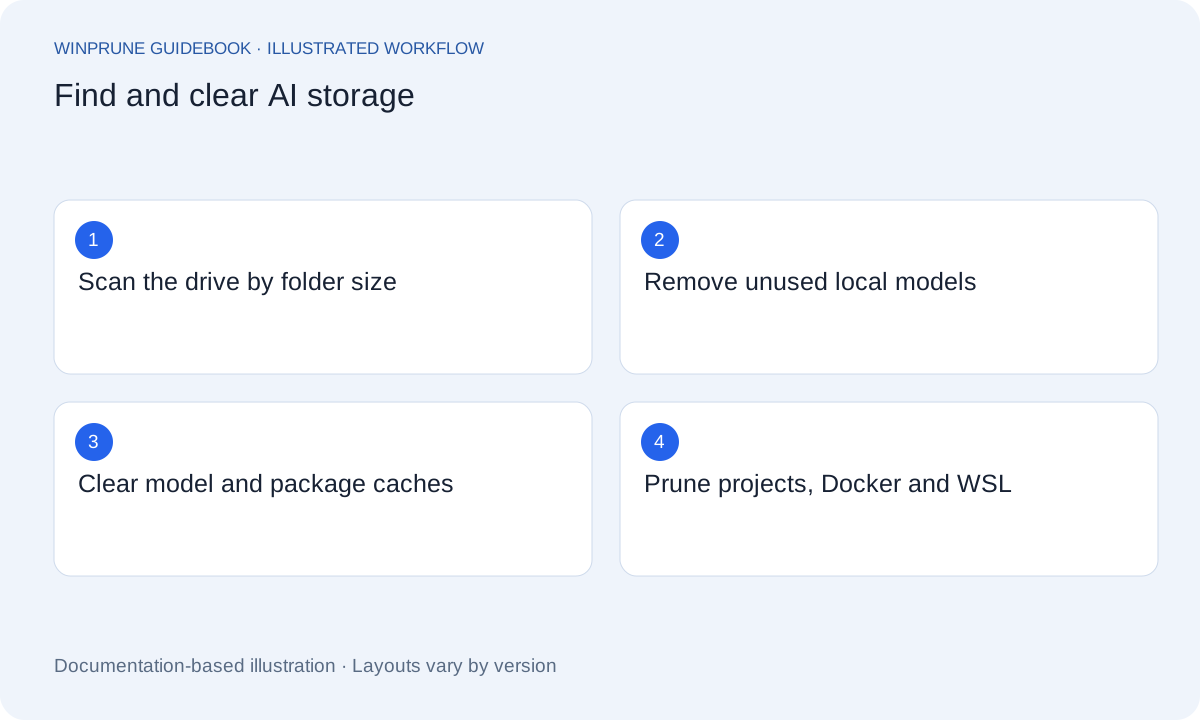
This guide shows where each kind of AI data lives on Windows 11 and 10, how to measure it, and how to remove what you no longer need without breaking the tools you still use.
Why is AI filling up my C: drive?
AI tools are built to be fast, and speed usually means keeping things on disk: models are cached so they load instantly, packages are cached so installs are quick, and every project gets its own copy of its dependencies. The defaults put almost all of it in your user folder on C:, often in hidden folders that start with a dot.
| What | Default location | How to check size | Safe way to clean |
|---|---|---|---|
| Ollama models | %USERPROFILE%\.ollama\models | ollama list | ollama rm <model> |
| LM Studio models | Shown in LM Studio under My Models | My Models tab | Delete the model inside LM Studio |
| Hugging Face downloads | %USERPROFILE%\.cache\huggingface\hub | huggingface-cli scan-cache | huggingface-cli delete-cache |
| pip package cache | Run pip cache dir to see it | pip cache info | pip cache purge |
| npm package cache | %LocalAppData%\npm-cache | npm cache verify | npm cache clean --force |
| Python virtual environments | Inside each project (venv, .venv) | Folder size in a storage analyzer | Delete old venvs, recreate from requirements |
| node_modules folders | Inside each JavaScript project | Folder size in a storage analyzer | Delete in finished projects, reinstall when needed |
| Docker images and volumes | Inside Docker Desktop’s virtual disk | docker system df | docker system prune |
| WSL Linux distributions | A virtual disk file (ext4.vhdx) | Size of the .vhdx file | Clean inside Linux, then let the disk shrink |
How much space do local AI models take, and how do I remove them?
A local model is one large file. Depending on the model’s size and how heavily it is compressed (its quantization), a single model is often a few gigabytes and larger models run to tens of gigabytes. Trying out several models, or several versions of the same one, adds up fast.
With Ollama, list what you have and remove what you no longer use. Ollama shows the size of each model, so start at the top of the list:
ollama list
ollama rm llama3:70b
Replace llama3:70b with the name shown in your own list. Do not delete files inside the .ollama folder by hand: Ollama stores models as shared pieces, and the rm command removes only the pieces no other model uses. To keep future models off C:, set the OLLAMA_MODELS environment variable to a folder on another drive and restart Ollama.
In LM Studio, open My Models, check the size next to each model and delete the ones you no longer need from there. LM Studio also lets you change the models folder, which is the easiest way to move them to a larger drive.
How do I clear the Hugging Face cache on Windows?
Python tools that download models from Hugging Face, such as transformers, diffusers and many image and speech tools, save them in a shared cache. It keeps every version you have ever downloaded, so it grows quietly over time. To see what is inside and how big each item is, run:
huggingface-cli scan-cacheThen run the interactive clean-up, which lets you tick the models and revisions to remove:
huggingface-cli delete-cacheTo move the cache to another drive in future, set the HF_HOME environment variable to a folder on that drive.
Why are Python environments so big for AI projects?
AI libraries are large, and GPU builds of frameworks such as PyTorch are especially large because they bundle GPU support. Each virtual environment gets its own full copy, so five experiments can mean five copies. On top of that, package managers keep a cache of everything they have downloaded.
- Delete virtual environments (venv or .venv folders) in projects you have finished. If the project has a requirements.txt or pyproject.toml, you can recreate the environment later.
- Clear the pip cache: run pip cache info to see its size, then pip cache purge.
- If you use uv, run uv cache clean. If you use conda, run conda clean --all to remove unused packages and caches.
Are AI coding tools filling my drive with node_modules and worktrees?
AI coding assistants make it easy to start a new app, try three approaches and run several agents side by side. Every JavaScript project gets its own node_modules folder, which often holds hundreds of megabytes, and some tools give each agent or task its own Git worktree: a full extra copy of the project’s files.
- Delete node_modules in projects you are not working on. Running npm install brings it back when you need it.
- In each repository, run git worktree list to see extra worktrees. Remove finished ones with git worktree remove <path>, then run git worktree prune to clean up leftovers.
- Check the npm cache with npm cache verify. If it is very large, npm cache clean --force clears it, and npm downloads packages again as needed.
- Look for abandoned experiment folders, such as test projects an agent created, before deleting anything you still use.
Why doesn’t Docker or WSL give space back after I delete things?
Docker Desktop and WSL keep Linux data inside virtual disk files (.vhdx) on your Windows drive. These files grow as you add images, containers and files, but by default they do not shrink when you delete things inside them. So you clean up inside Linux and your C: drive does not get the space back.
For Docker, check what is using space and remove what is unused:
docker system df
docker system prune
docker system prune removes stopped containers, unused networks, dangling images and unused build cache. Adding -a also removes all images not used by a container, and --volumes removes unused volumes, which can contain data you want, so only add those once you have checked.
For WSL, clean up inside your Linux distribution first. Recent versions of WSL can then return freed space to Windows automatically if you turn on sparse mode for the distribution. Shut WSL down, then run the command with your distribution’s name (wsl --list shows it):
wsl --shutdown
wsl --manage Ubuntu --set-sparse trueWhat should you never delete by hand?
- Files inside the .ollama models folder. Use ollama rm instead.
- Virtual disk files (.vhdx) used by WSL or Docker, unless you mean to delete everything inside them.
- A virtual environment or node_modules folder in a project you are running right now. Close the project first.
- Anything under C:\Windows or C:\Program Files. Uninstall AI apps from Settings → Apps instead.
How do you find which AI folder is the biggest?
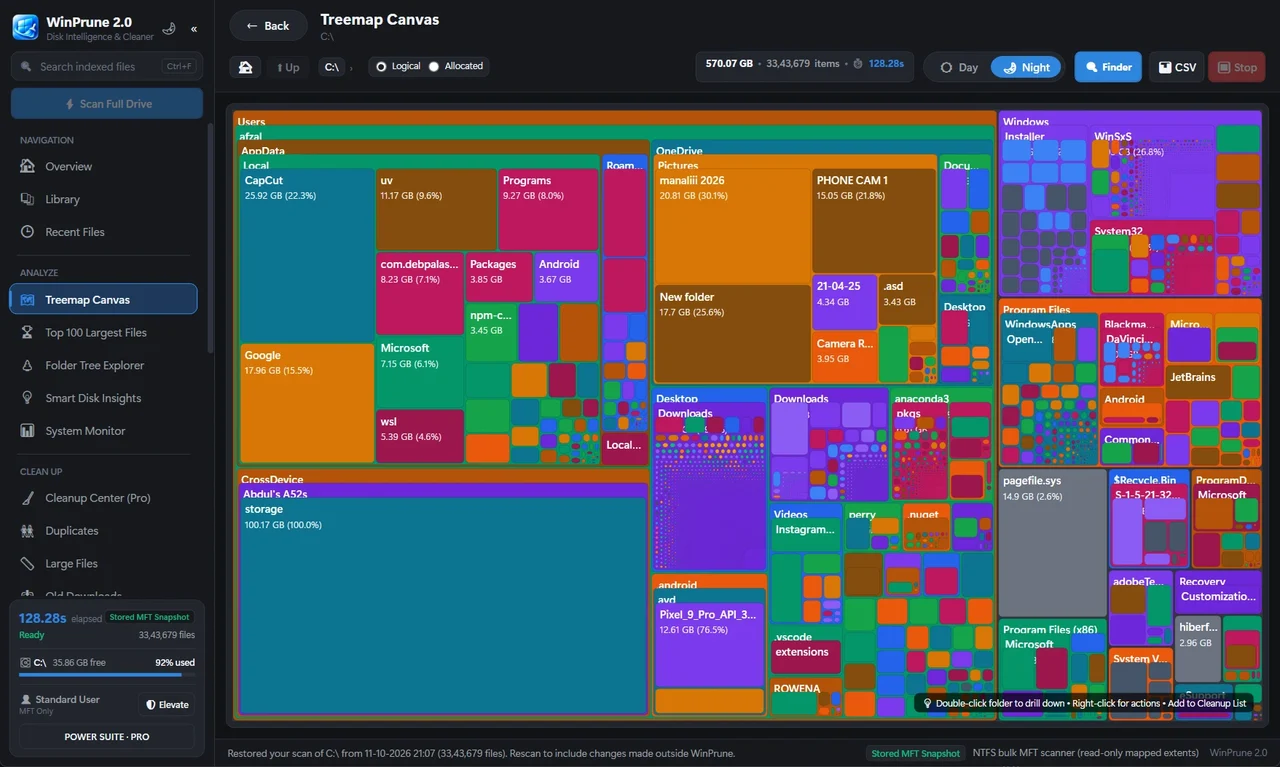
Most of these folders are hidden or buried inside your user folder, so File Explorer is a slow way to compare them. A storage analyzer scans the whole drive and shows every folder by size on one map. In a few seconds you can see whether .ollama, the Hugging Face cache, a Docker virtual disk or a forgotten pile of node_modules folders is what is really filling your drive, and start with the biggest one.
A 10-minute AI storage clean-up routine
- Scan your drive with a storage analyzer and note the five biggest AI-related folders.
- Remove local models you have not used this month with ollama rm or in LM Studio.
- Run huggingface-cli delete-cache and untick only the models you still use.
- Run pip cache purge (and uv cache clean or conda clean --all if you use them).
- Delete node_modules and virtual environments in finished projects, and prune Git worktrees.
- Run docker system df, then docker system prune if the unused total is large.
- Rescan the drive and compare. Move model folders to another drive if C: is still tight.
AI tools are not going away, and neither is the storage they need. The difference between a drive that fills up every month and one that does not is knowing where each tool keeps its data, and checking it before the warning appears.
Sources & further reading
Windows instructions checked against the official documentation linked here. Controls can vary by Windows version and device configuration.
Put your storage knowledge into practice.
Download WinPrune free for Windows 10 & 11, scan your drive, and see where your space goes.
Explore WinPrune Download free WinPrune Pro · $15.99 USD · One-time payment. No recurring billing.