Record the drive you are investigating
Open Windows storage settings and note the drive, its free space, and the largest categories. A search of one folder is not a measurement of the whole computer. Keep the target clear so you can interpret the results and later check whether an action returned space to the intended drive.
Sort a personal folder by size
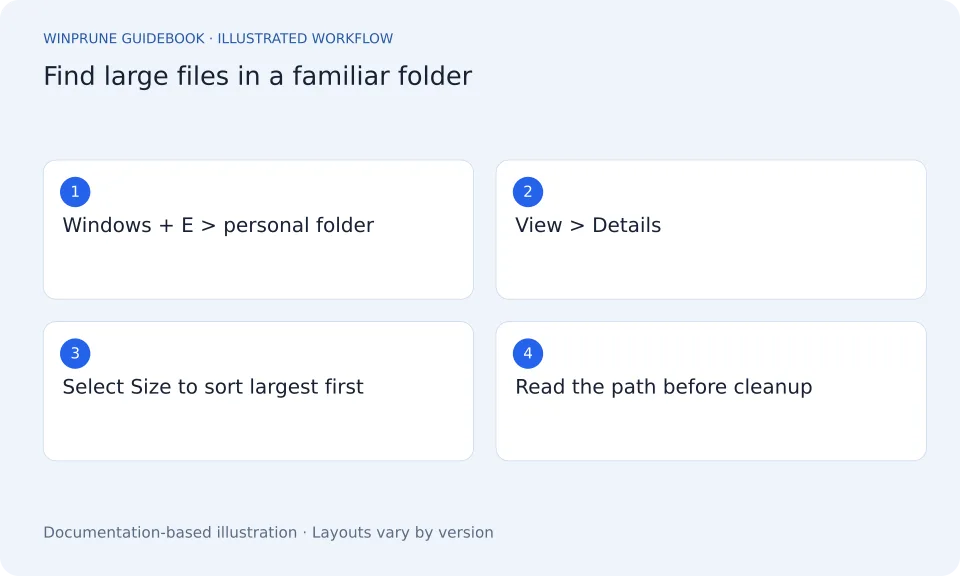
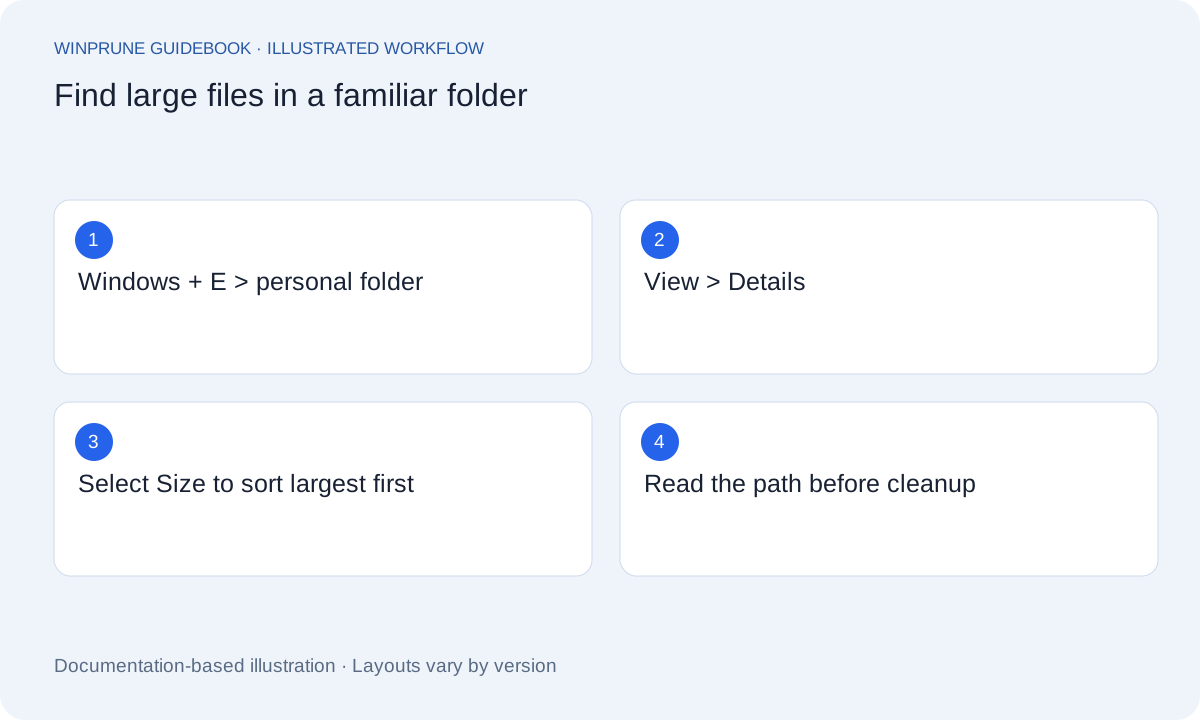
- Press Windows + E. Open a familiar folder such as Downloads or Videos; keep the address and drive letter in view.
- Choose View > Details. If Size is missing, open a column heading’s context menu and enable Size.
- Select Size to sort. If the smallest entries appear first, select it again so the largest files appear at the top.
- Inspect a large file’s full path, type and contents. Check Properties for context before deciding what to keep.
- Repeat in another familiar folder if needed. Folder entries in Details view are not recursive size totals.
Optional: list large files below one personal folder
For a recursive file list, the PowerShell example below reads your Downloads folder and displays its 20 largest accessible files. It does not delete them or include inaccessible items; a folder that cannot be read is not evidence of zero usage.
$reviewFolder = Join-Path $env:USERPROFILE 'Downloads'
Get-ChildItem -LiteralPath $reviewFolder -File -Recurse -ErrorAction Continue |
  Sort-Object Length -Descending |
  Select-Object -First 20 FullName, @{Name='SizeMiB';Expression={[math]::Round($_.Length / 1MB, 1)}}
Use Microsoft’s File Explorer documentation for the graphical workflow. Read the Microsoft instructions.
Use categories to choose a starting point
Start with categories you understand, such as installed applications or personal documents. Follow a category into its review controls rather than deleting a folder based on its name. Windows may use categories and estimates that differ from another storage report, so a mismatch deserves investigation rather than an assumption that one number proves the other wrong.
- Identify the drive and record its current free space.
- Choose a large category or a familiar personal folder.
- Use File Explorer details to compare file sizes and locations.
- Open recognizable personal files before making a cleanup decision.
Read the path with the size
A large recording in Videos, an archive in Downloads, and a file in a system-managed directory are different cases. Review the full path and what created the file. Check whether the file belongs to an application, a backup, a current project, or a synced location. The filename may only describe part of its purpose.
Check local and logical size
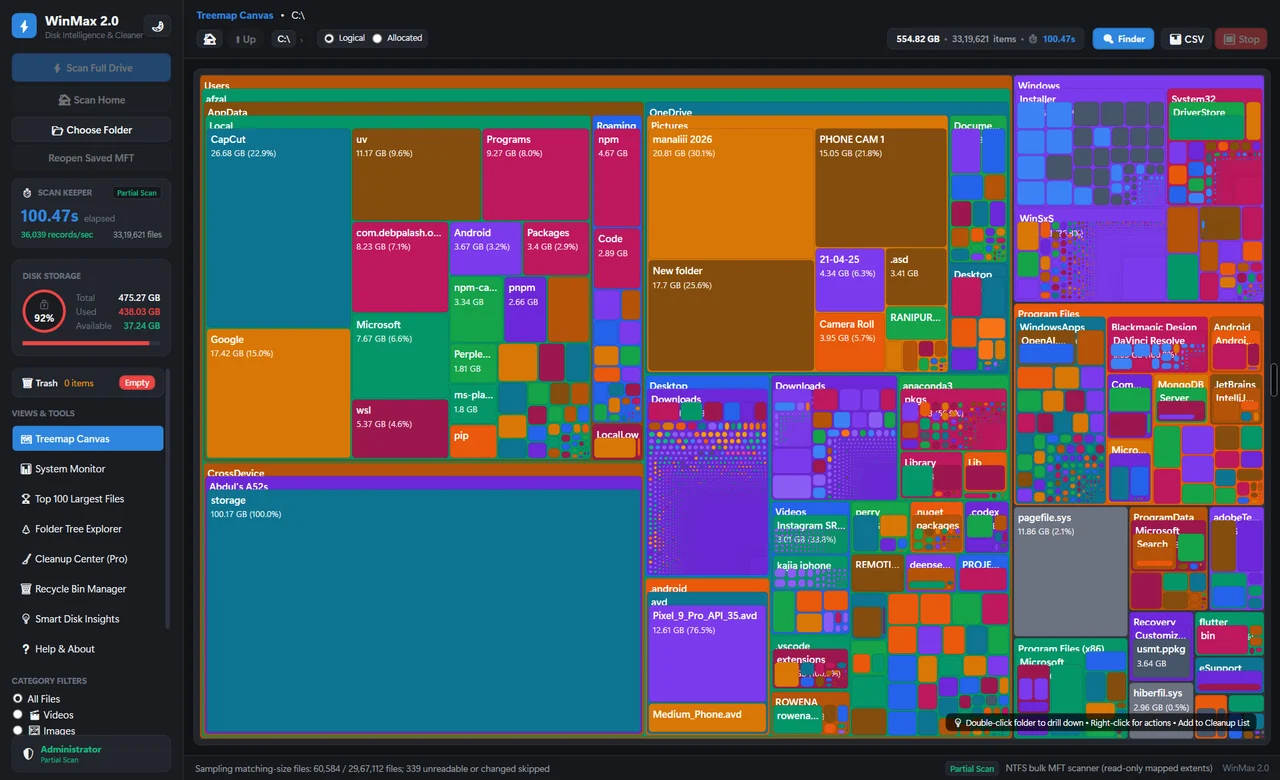
Cloud placeholders can display a logical file size without every byte being downloaded to this device. Other filesystem and storage behaviors can also affect measurements. Review OneDrive availability indicators and the scope of the tool you are using. A map is useful for relative size, but its labels must still be interpreted in context.
Turn the findings into one measured action
Choose a reviewed item you no longer need, preserve important data, and use a deletion or uninstall process appropriate to that item. Check the resulting free space on the same drive. If you are evaluating a disk analyzer, look for clear paths, scan scope, unreadable-folder reporting, and documented cleanup safeguards. Exact WinPrune controls will be added when its release build is available; this guide does not assume unverified app capabilities.
Sources & further reading
Windows instructions checked against the official documentation linked here. Controls can vary by Windows version and device configuration.
Put your storage knowledge into practice.
Explore WinPrune and check the current download status. The installer and verified application instructions are still being prepared.
Explore WinPrune Download status WinPrune Pro · $15.99 USD · One-time payment. No recurring billing.