Separate local storage from cloud storage
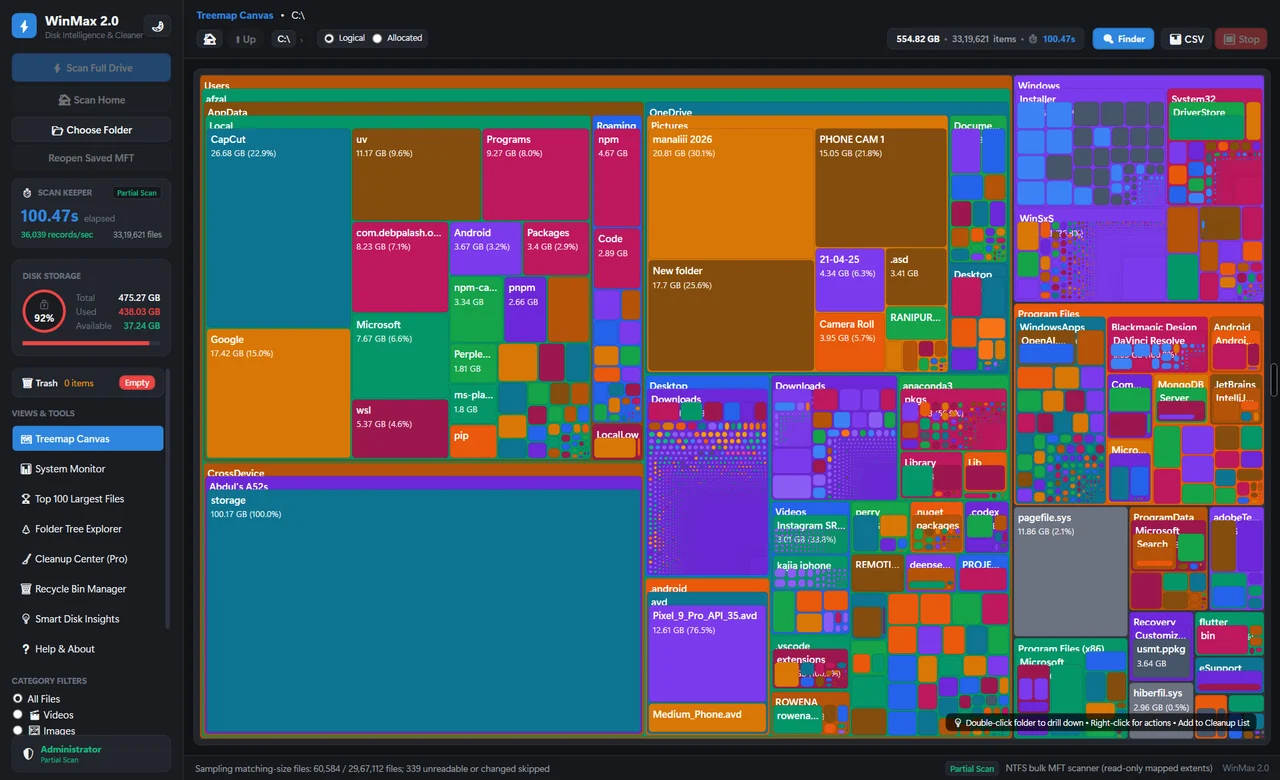
A OneDrive file can be visible in File Explorer without all of its contents occupying local disk space. Files On-Demand uses status indicators to distinguish files that are available online, downloaded locally, or kept on the device. Check those indicators before estimating how much space a folder can return to your drive.
Choose the action by the outcome you want
| Action | Cloud file | Local availability | Offline consequence |
|---|---|---|---|
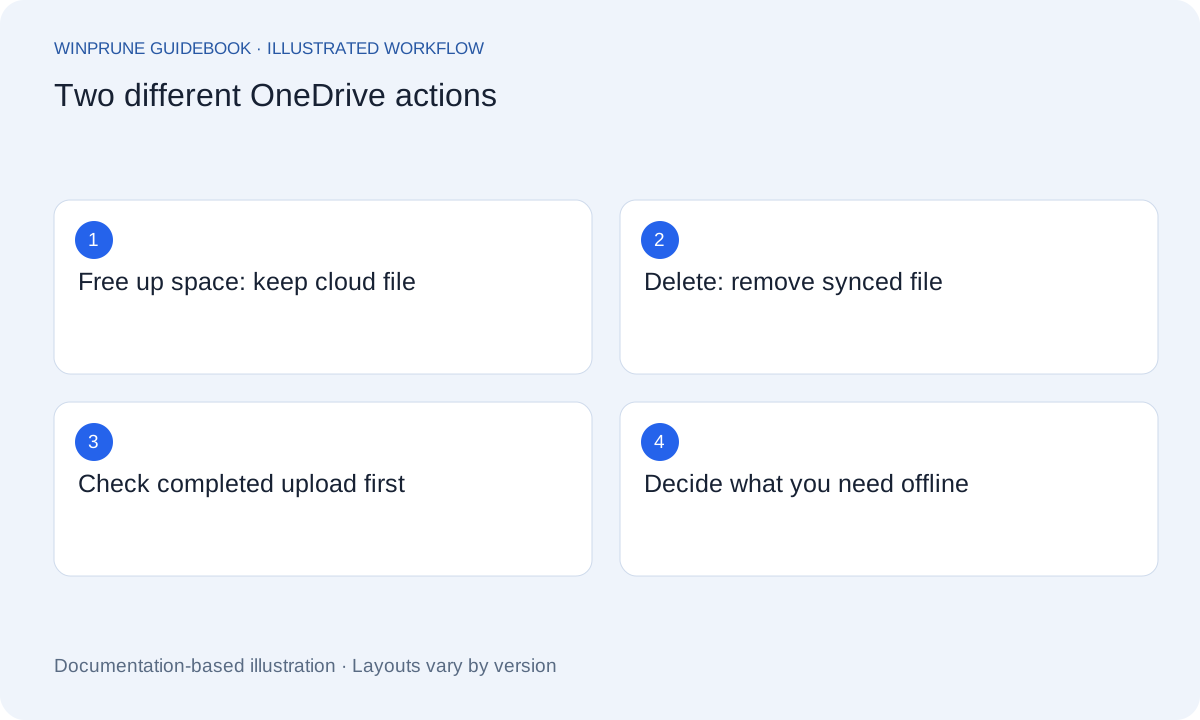
| Free up space | Retained after successful sync | Local contents removed where Files On-Demand applies | May need internet to open again |
| Delete | Deletion can sync to OneDrive and devices | File is removed rather than merely made online-only | Use applicable recovery controls if mistaken |
| Always keep on this device | Retained | Downloaded and kept available locally | Uses disk space so the file can be opened offline |
A blue cloud indicator means an online-only file. A green check indicates local availability; a solid green circle with a white check identifies a file kept on the device. Icons can vary with sync state and account policy. If an upload is pending or reports an error, resolve that before removing local availability.
Microsoft explains Files On-Demand status icons, offline use and local-space actions. Read the Microsoft instructions.
Use Free up space when you want to keep the file
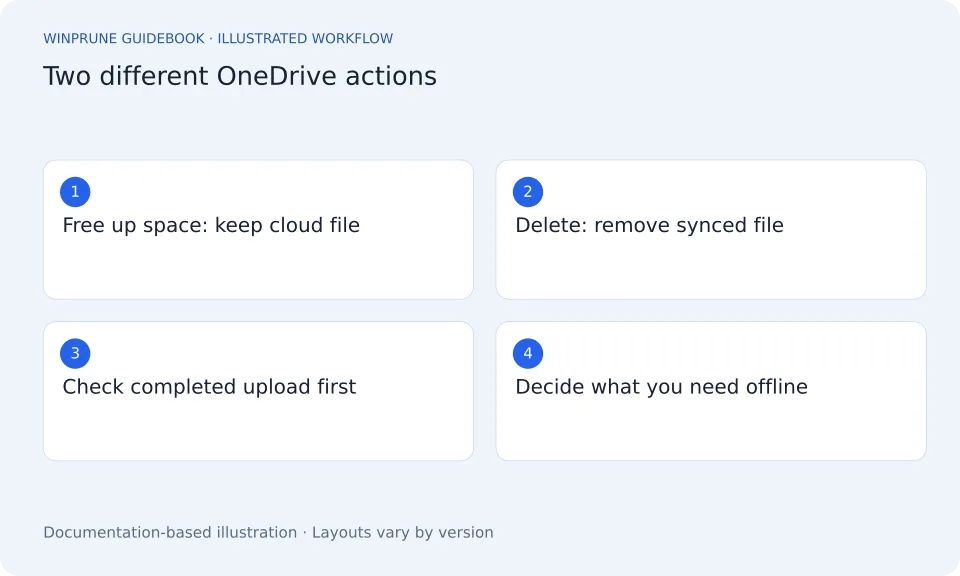
For files that have successfully synced and support Files On-Demand, the Free up space action removes the local copy while leaving the file available in OneDrive. The file remains visible, but opening it later can require an internet connection and download its contents again. This changes local availability rather than deleting the cloud file.
- Confirm that the file has finished syncing.
- Check that you are signed into the intended OneDrive account.
- Decide whether you need the file when offline.
- Use the documented local-space action for files you want to retain online.
Understand what Delete means
Deleting a file from a synced OneDrive folder is a different operation. The deletion can synchronize to OneDrive and other devices. If your intention was only to reduce the local disk footprint, this can remove the file from places where you expected to keep it. Read the current Microsoft guidance before choosing deletion.
Review recovery and access needs
If you deleted something by mistake, check the applicable Recycle Bin and Microsoft’s OneDrive recovery instructions promptly. Recovery depends on the account, policy, and state of the file; do not assume it will remain recoverable forever. For work or school storage, an administrator may set policies that affect what actions are available.
Measure the right kind of space
Check free space on the Windows drive after removing local copies. Cloud quota is a separate measurement and may not change when you free local space. Files already online-only may return little or no local space. If the drive is still full, review downloaded files and other storage categories rather than deleting online-only files merely because their displayed logical size looks large.
Sources & further reading
Windows instructions checked against the official documentation linked here. Controls can vary by Windows version and device configuration.
Put your storage knowledge into practice.
Explore WinPrune and check the current download status. The installer and verified application instructions are still being prepared.
Explore WinPrune Download status WinPrune Pro · $15.99 USD · One-time payment. No recurring billing.