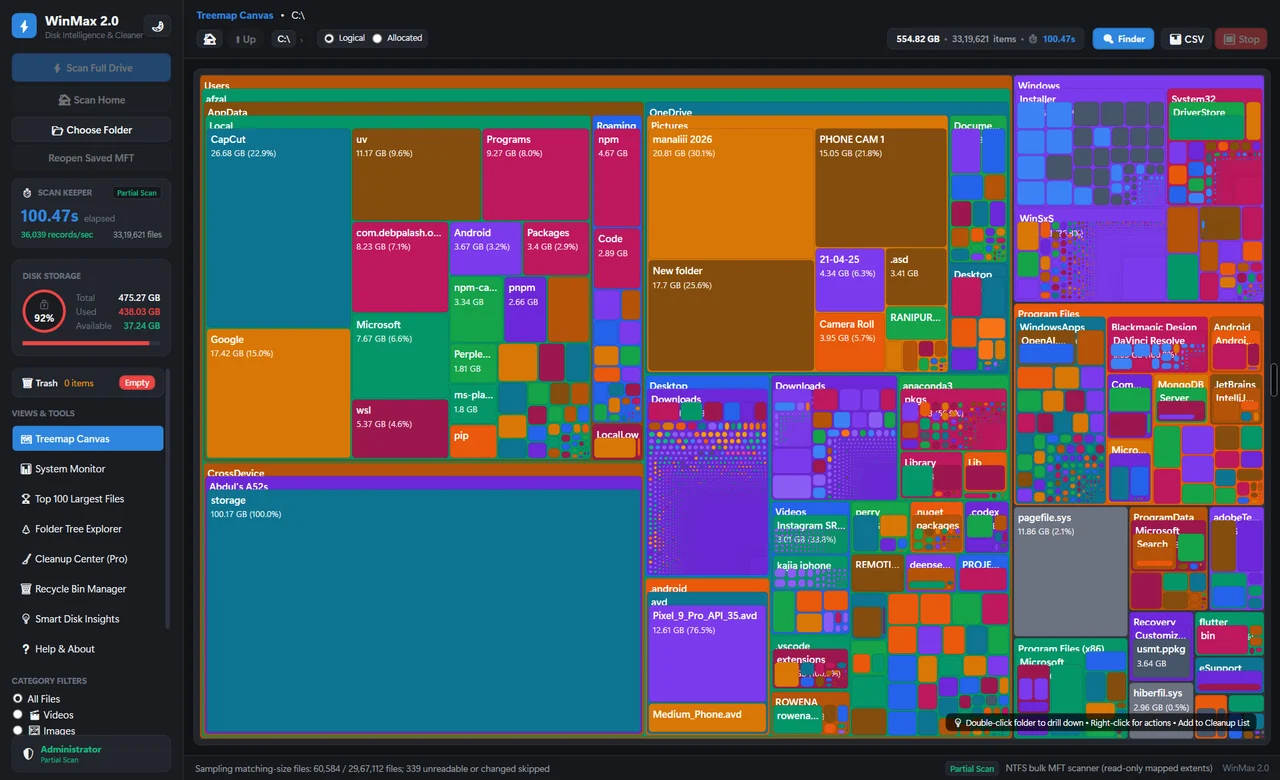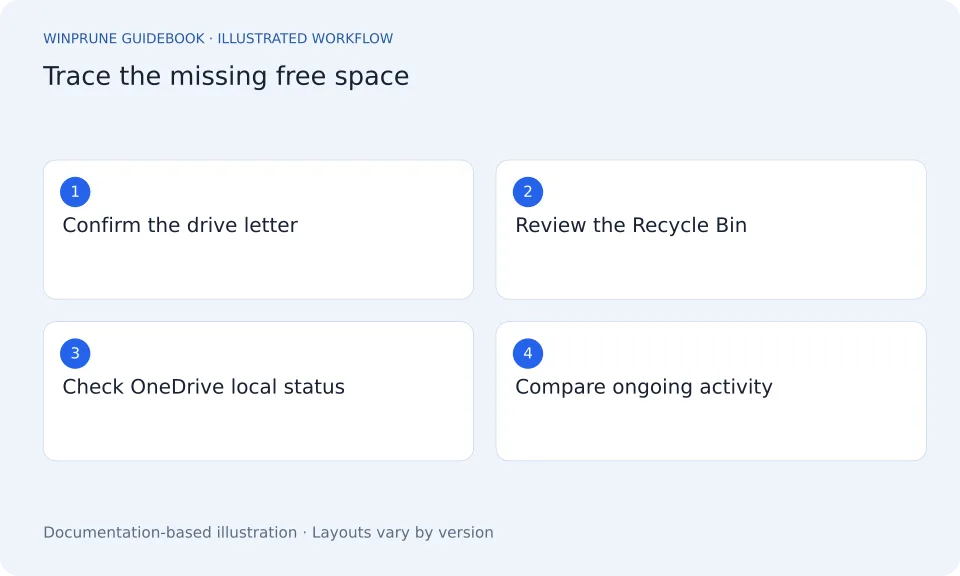
Establish what changed
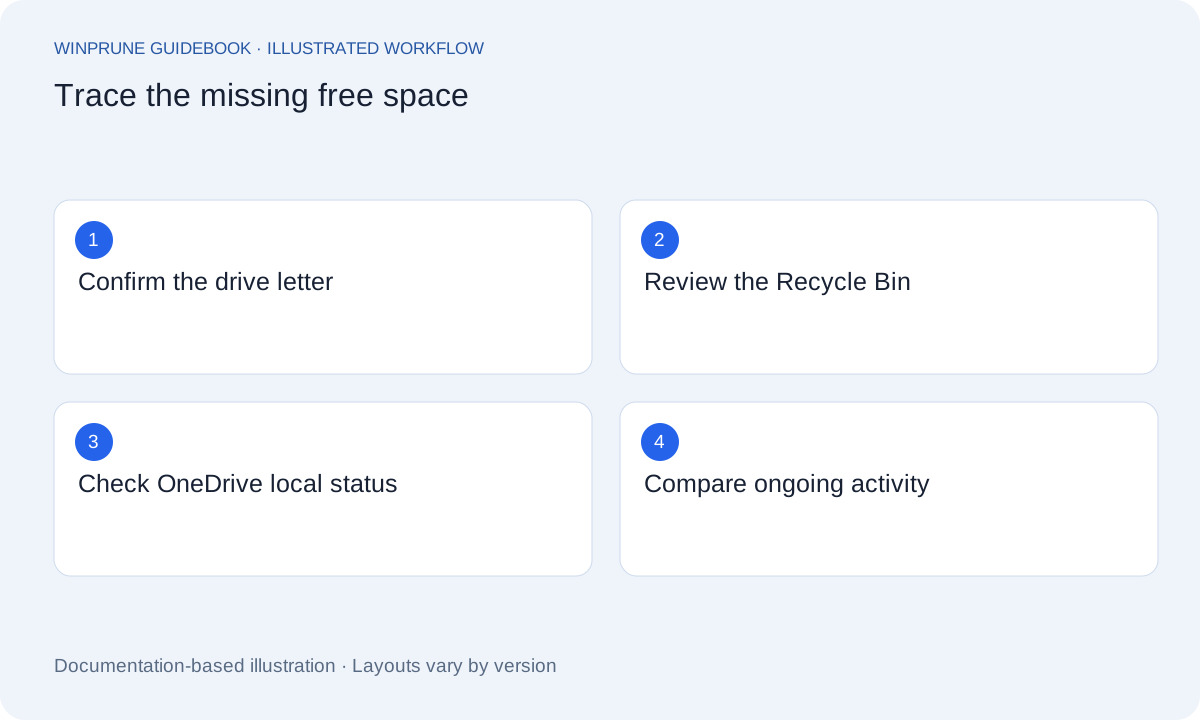
A practical diagnosis without another deletion
| Observation | Possible explanation | Next check |
|---|---|---|
| File moved to another C: folder | Same volume still stores it | Compare the source and destination drive letters |
| Deleted file is in Recycle Bin | Normal recovery copy still occupies space | Review the bin before permanent removal |
| Deleted file was online-only | Little content was stored locally | Inspect OneDrive status |
| Drive fills again quickly | New writes may offset space recovered | Record downloads, recordings and update activity |
Write down free space immediately before the change and again afterward. A category estimate that has not refreshed is different from File Explorer reporting free space on the wrong drive.
For a drive that repeatedly runs low, follow Microsoft’s low-space troubleshooting. Read the Microsoft instructions.
Write down the full location of the files you removed, the action you took, and the free-space report you are comparing. “The disk” may refer to a different drive or to cloud capacity rather than local storage. Compare the same drive before and after.
If files moved to another folder on C:, they still occupy C:. If you copied them to a different drive but kept the originals, the source drive has not regained that space yet. Verify the destination copy before making any further change.
Inspect the Recycle Bin
A normal deletion can place items in the Recycle Bin. Microsoft notes that permanently removing its contents is required to fully reclaim their space. Open it and inspect the items first; restore anything removed by mistake. Emptying it is a permanent step, not a harmless refresh.
Check cloud-file behavior
An online-only OneDrive item does not have the same local footprint as a downloaded file. Removing its listing may not free the amount suggested by its apparent file size. Opening an online-only file can download it again. Review the status icons and Microsoft’s Files On-Demand documentation.
Look for new activity
- Open Settings → System → Storage and allow the category breakdown to finish.
- Consider work happening since the cleanup: downloads, recordings, updates, or application activity.
- Check the category that changed rather than deleting from unrelated folders.
- Pause an optional personal download or recording through its own controls if it is the cause. Do not stop unknown Windows services.
A single before-and-after number cannot tell you whether old files were removed while new files were created. Record what was active during the comparison. If available space falls rapidly without a known cause, capture the category and timing for troubleshooting.
When to ask for help
If Windows repeatedly reports low space or a temporary folder rapidly grows again, use the relevant Microsoft troubleshooting steps. For a work device or a protected system location, contact the administrator or application vendor. Provide the drive, category, time, and actions already attempted.
Do not force permissions, take ownership of protected folders, or remove installer caches to make the number change. The goal is an explanation you can act on, not a larger deletion with less information.
Sources & further reading
Windows instructions checked against the official documentation linked here. Controls can vary by Windows version and device configuration.
Put your storage knowledge into practice.
Explore WinPrune and check the current download status. The installer and verified application instructions are still being prepared.
Explore WinPrune Download status WinPrune Pro · $15.99 USD · One-time payment. No recurring billing.