WinPrune
Tools & Comparisons
Choose the right storage tool for the question you’re asking.
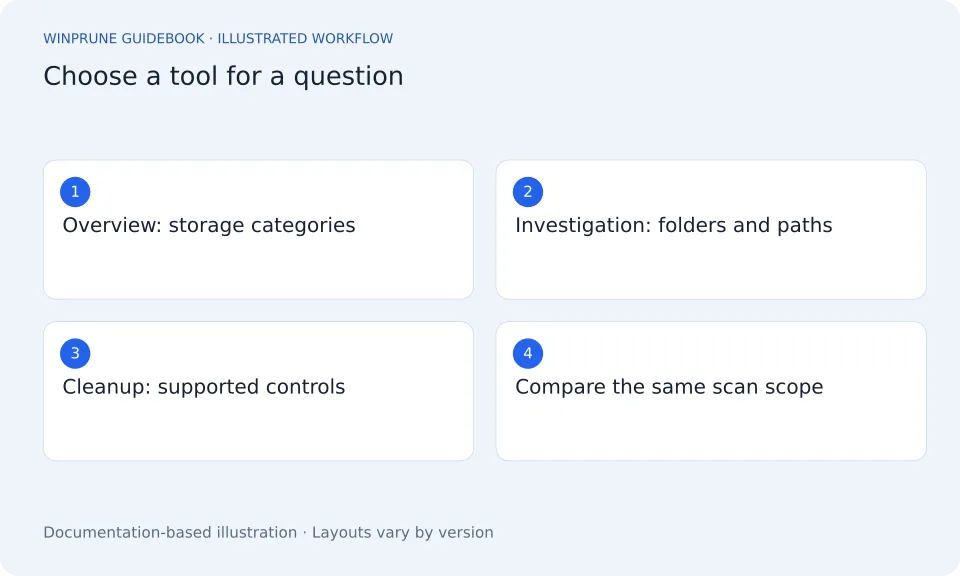
Windows Storage Analyzer: How to Choose a Disk Space Tool
Evaluate the question a tool answers, its measurement scope, and its cleanup safeguards before you compare screenshots or scan-time claims.
Storage Analyzer for Windows 11 and 10: Free Tools Compared
Compare the built-in Windows storage view with free storage analyzers like WinPrune, WizTree and WinDirStat, and find what fills your drive safely.
WizTree Alternative: WinPrune vs WizTree for Windows 11 and 10
WizTree finds what fills your drive fast. WinPrune also reads the NTFS Master File Table, then adds a review list and Recycle Bin restore so you can clean up safely.
WinDirStat Alternative: WinPrune vs WinDirStat for Windows 11 and 10
WinDirStat is the classic open-source disk analyzer. Compare it with WinPrune, which reads the NTFS Master File Table and adds a reviewed cleanup flow with Recycle Bin restore.
TreeSize Free Alternative: WinPrune vs TreeSize for Windows 11 and 10
TreeSize Free is for private use and leaves large-file search and duplicates to paid editions. Compare it with WinPrune, which includes both in a one-time $15.99 Pro.
Keep exploring your storage.
Get a clearer view of your Windows storage. Start with the guides, then try WinPrune: the Free version scans your drive in about a minute.
Explore the Free and Pro toolsNot sure yet? Download WinPrune free first
Secure checkout by Dodo Payments. Free download for Windows 10 & 11.