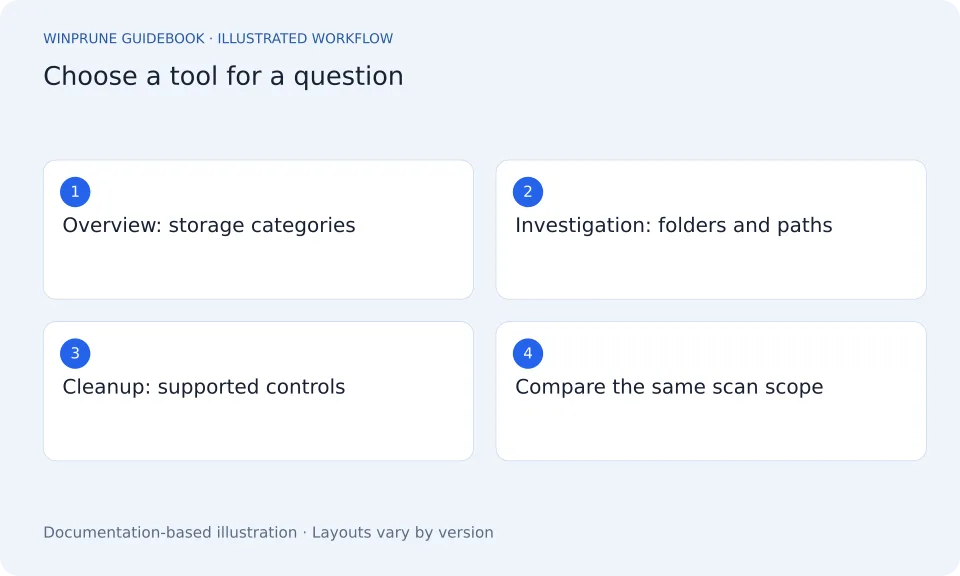
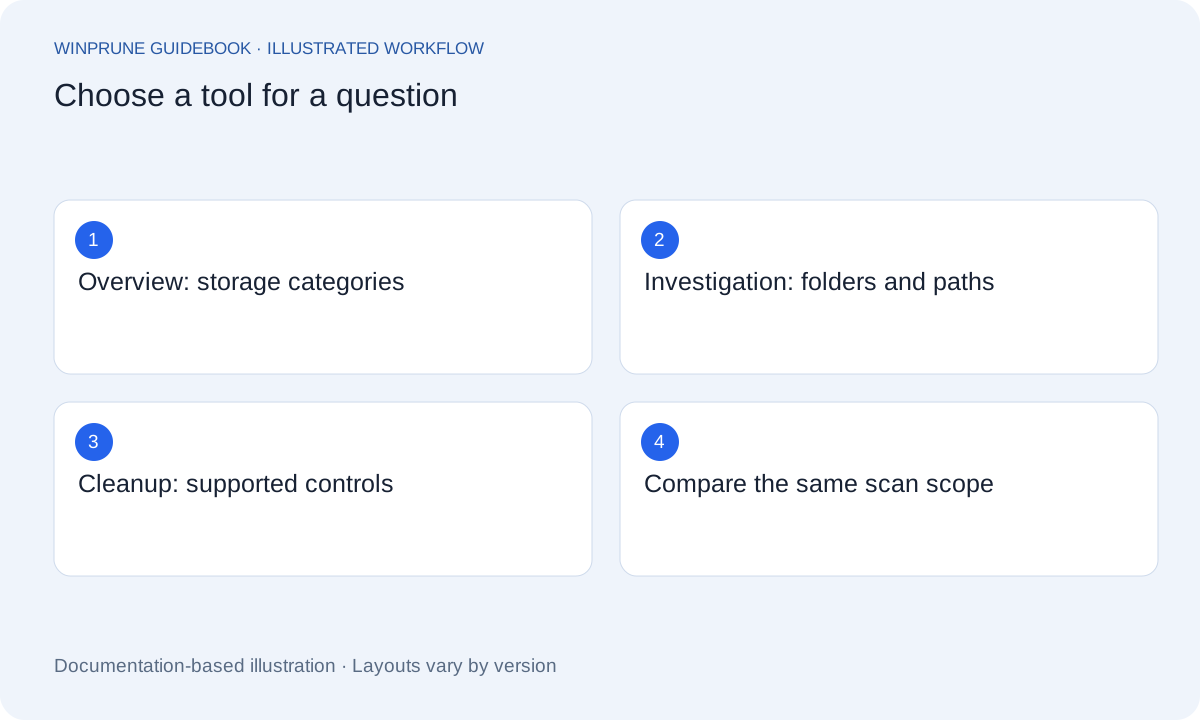
Begin with the question you need answered
Compare tool types without inventing benchmarks
| Tool or view | Useful for | Limit |
|---|---|---|
| Windows Storage settings | Category-level overview and supported cleanup | Not a complete recursive file-size listing |
| File Explorer Details view | Comparing files in a known location | Folder totals and access boundaries need separate investigation |
| Disk analyzer with a treemap | Exploring relative folder and file sizes | A large block does not establish whether deletion is safe |
| Application uninstaller | Removing a known installed application | Read its saved-data and account prompts |
Do not rank analyzers by an unverified scan-time claim. Compare the same folder, permissions, drive and measurement method, and keep a note of any inaccessible locations. No product benchmark is presented here.
“How much space is left?” needs a different view from “Which folder is growing?” or “What can I remove?” Write down the question before comparing tools. For a first overview, Windows Storage settings already supplies category-level information. You may not need another application to find your starting point.
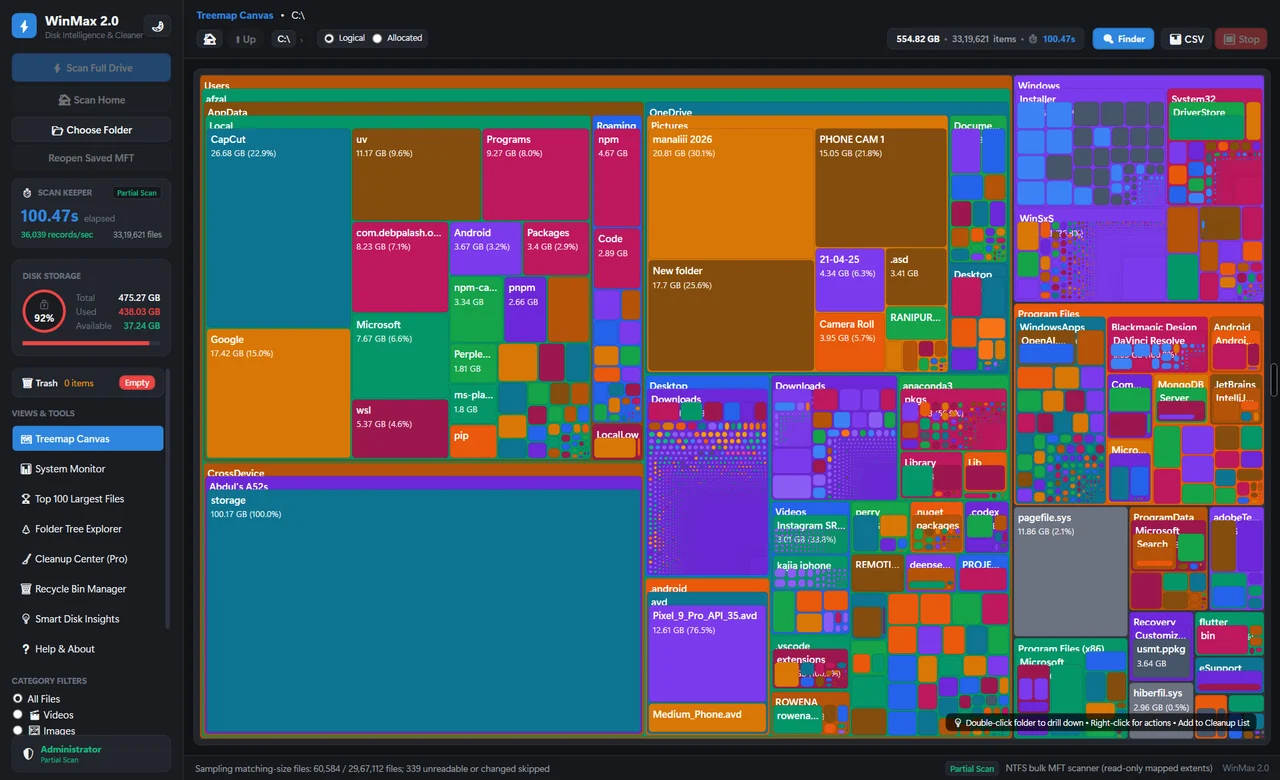
A visualization can be useful for exploring relative size, while a sortable file list can make paths and individual items easier to examine. Neither presentation automatically tells you whether a file is unnecessary. Treat visibility and cleanup judgment as separate requirements.
Check the measurement boundaries
- Scope: can you choose the drive or folder you want to investigate?
- Access: how does the tool report unreadable locations instead of silently implying it saw everything?
- Meaning: does the report explain its size metric and whether remote or cloud content is included?
- Freshness: can you tell when the result was created and what happened since then?
Look for a reviewable removal process
If a tool supports deletion, read the documentation for selection, confirmation, exclusions, and recovery. The right question is not only “Can this clear space?” but “Can I understand exactly what this action will affect before I approve it?”
Evaluate performance claims fairly
For a scan-time comparison, look for the tested drive, hardware, filesystem, permissions, scope, and scan method. A partial scan and a complete scan are not the same workload. A result from another device may not predict what you will see on yours.
Try a familiar folder and verify that you can explain the result. If you compare two reports, use the same scope and record whether files changed between runs. A discrepancy is a reason to understand the measurement, not immediately declare one tool correct.
Separate price from product fit
Check whether the advertised price is one-time or recurring and which features are actually included. Licensing, support, and update terms matter independently of the screenshot. This site sets WinPrune Pro at $15.99 USD one-time, but its app capabilities and purchase integration are not verified yet; no competitive ranking is claimed.
A practical evaluation checklist
- Define one storage question and test that question.
- Check paths and report scope using files you already recognize.
- Read cleanup and recovery documentation before trying removal.
- Confirm license terms and the real installer source before purchasing or installing.
The useful tool is the one that makes your next decision understandable. Keep built-in Windows controls in the workflow where they provide a supported route for cleanup or application maintenance.
Sources & further reading
Windows instructions checked against the official documentation linked here. Controls can vary by Windows version and device configuration.
Put your storage knowledge into practice.
Explore WinPrune and check the current download status. The installer and verified application instructions are still being prepared.
Explore WinPrune Download status WinPrune Pro · $15.99 USD · One-time payment. No recurring billing.