Ask what the file belongs to
Example: an export and its source project
A finished video export may look redundant next to the project file, but the project can depend on separate recordings, fonts, images and linked audio. Open the project and confirm those dependencies before deleting an export or moving a source folder. A project file by itself is not necessarily a backup of the finished work.
| Question | Useful evidence |
|---|---|
| Do I recognize it? | Full path and readable contents |
| Who depends on it? | Project, app or owner confirmation |
| Can I recover it? | A verified independent copy or documented restore flow |
| What happens to synced copies? | Service-specific deletion and retention rules |
Start with the complete path. A file in your Downloads folder, a project working directory, a synced folder, and a protected system location each needs a different decision. A filename alone is not enough: the same name can occur in several places with different purposes.
Check whether an application, another person, or an active project depends on it. If you cannot explain the file’s role, postpone deletion. The lack of an immediate use is not evidence that it has no use.
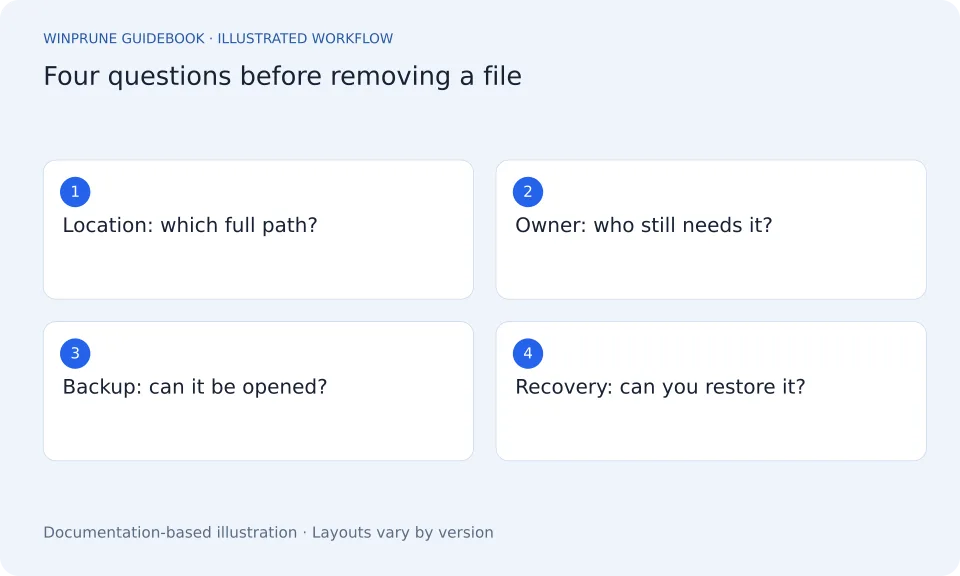
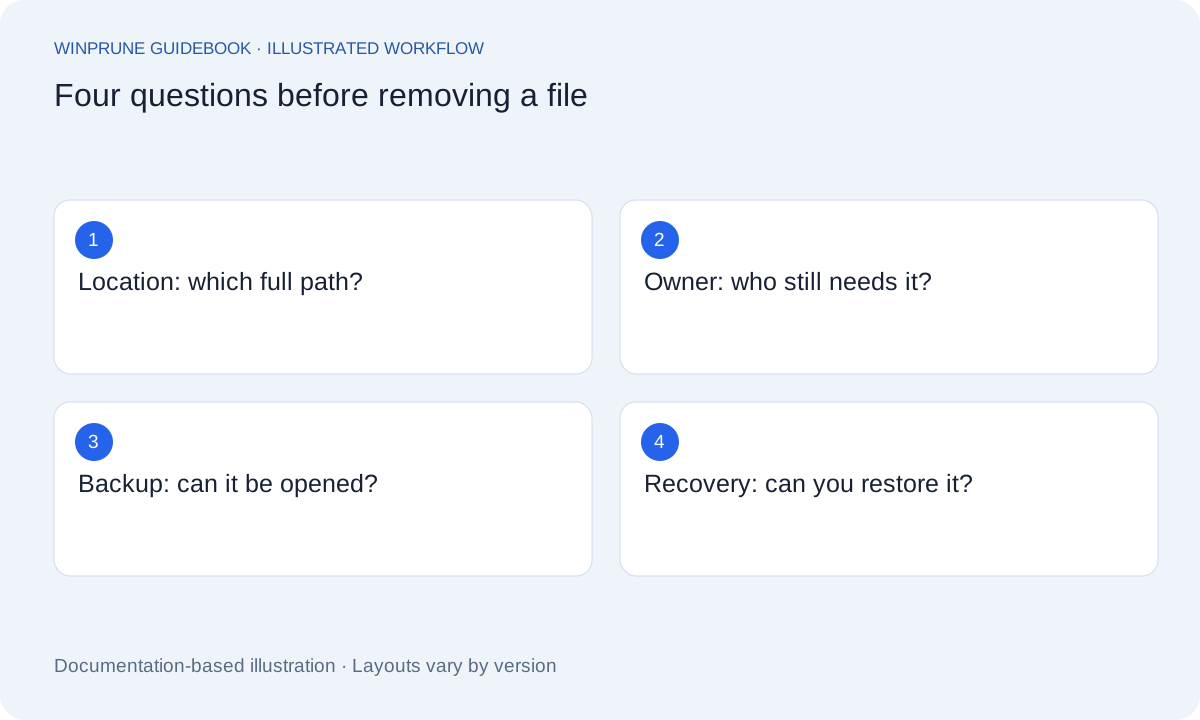
Use four review questions
- Location: am I looking at the actual file and the intended drive, rather than a shortcut or a different copy?
- Owner: who or what created it, and does the relevant person or app still need it?
- Replacement: if I remove it, can I obtain or restore the content I actually care about?
- Recovery: does this action move it to a recoverable location, or remove it permanently?
Verify the backup, not just its existence
For material you wish to keep, confirm that the backup covers the relevant files and that a sample can be opened. A successful-looking copy is a reason to check the destination, not a reason to immediately clear the source. For unique or irreplaceable work, follow your normal backup process before making changes.
Distinguish cloud synchronization from a separate backup. If a deletion propagates to other devices, those matching copies may change too. OneDrive provides a specific Free up space action for retaining supported synced content online while removing its local availability.
Make a small, reviewable change
- Save work and choose a small group of understood files.
- Confirm the selection and full paths one more time.
- Use the documented file-management action for that location.
- Check that expected files remain accessible and compare the drive’s available space.
- Keep notes if the cleanup is part of troubleshooting.
Before relying on WinPrune for removal, read the verified release instructions and licensing information. Confirm how selections, previews, recovery, and exclusions behave in the released build. The released documentation will explain these controls when the installer becomes available.
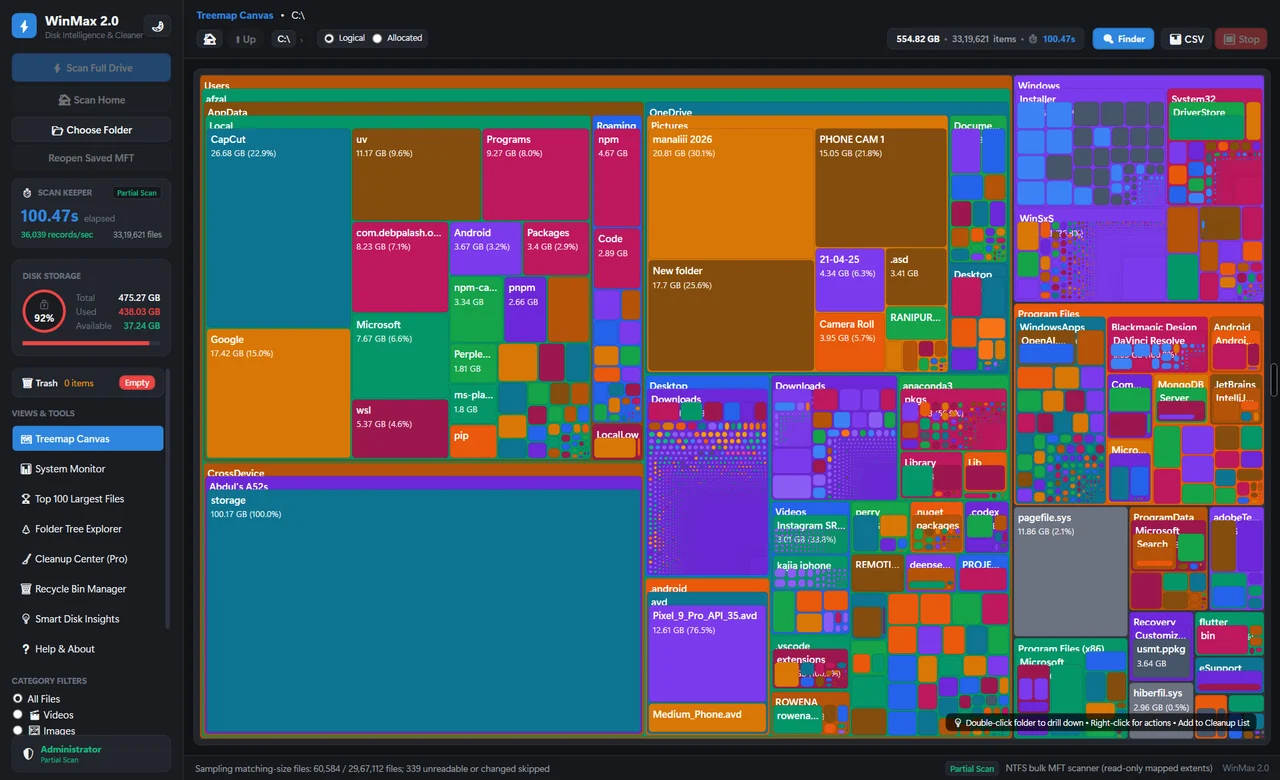
A storage visualization may tell you where to look. Your review establishes whether a change is appropriate. Keeping those decisions separate makes the process useful even when you switch tools.
Sources & further reading
Windows instructions checked against the official documentation linked here. Controls can vary by Windows version and device configuration.
Put your storage knowledge into practice.
Explore WinPrune and check the current download status. The installer and verified application instructions are still being prepared.
Explore WinPrune Download status WinPrune Pro · $15.99 USD · One-time payment. No recurring billing.