Start with a question, not a delete button
Worked example: a drive with a large Videos category
Suppose Storage settings shows Videos as the largest personal-file category. Open your Videos folder, choose Details view, and sort by Size. If an old export is large, first check whether the original project, source recordings, and a usable backup still exist. Keeping the export on another drive can reclaim room on C:, but moving it between two C: folders cannot. This example explains the process; it is not a measured WinPrune result.
Use Windows categories as a starting point and supported controls for system cleanup. Read the Microsoft instructions.
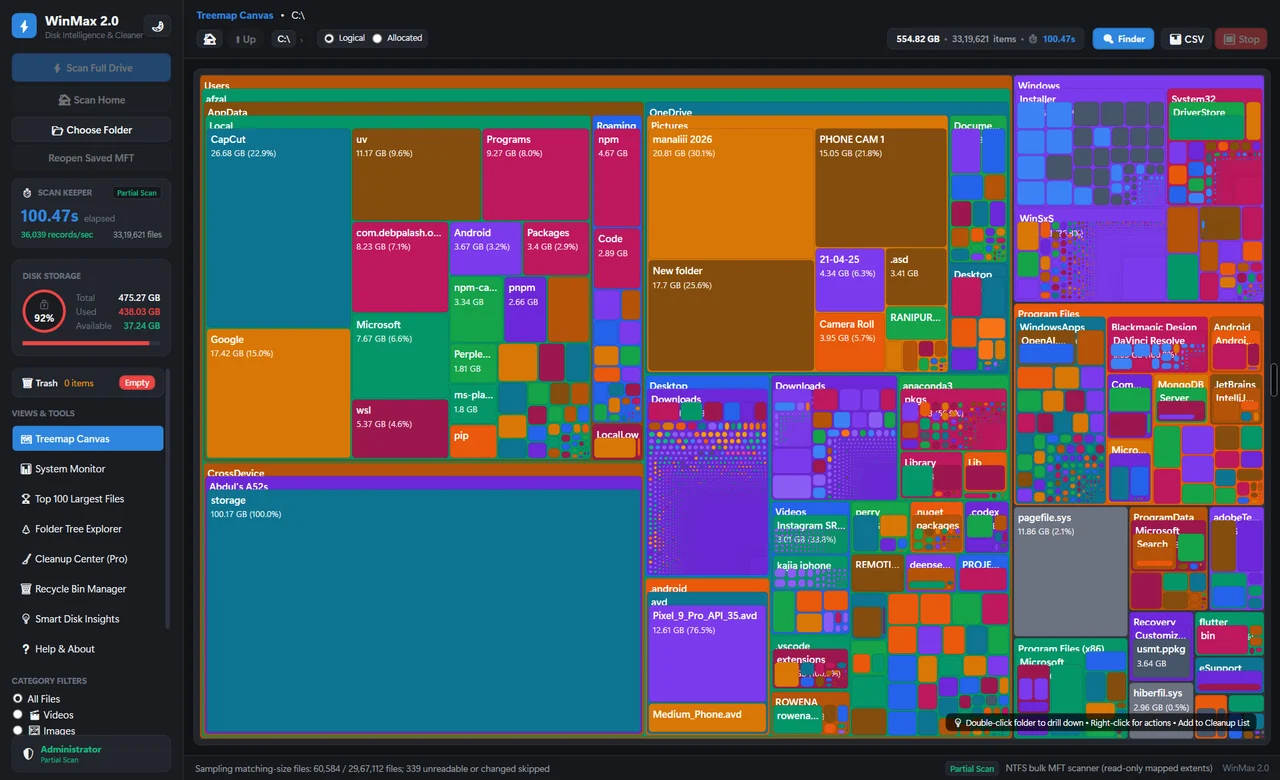
A nearly full drive is a measurement problem first. You need to know where the space is going, whether the files are still useful, and whether the number you are looking at describes the same drive as the files you are reviewing. A folder’s unfamiliar name does not tell you whether it is disposable.
This guide uses Windows 11’s built-in tools. Many principles also apply to Windows 10, but labels and layouts can differ. Start with your own files and use supported Windows controls for system cleanup. You do not need to download an analyzer to follow the first steps.
1. Record the drive and its free space
- Press Windows + E to open File Explorer. Select This PC and identify the drive you want to investigate.
- Note its drive letter, total capacity, and available space. If more than one drive is connected, keep the investigation on one drive at a time.
- Write down the starting number. This gives you a useful comparison after a move, uninstall, or cleanup.
An external drive with plenty of room does not solve a full system drive automatically. Likewise, moving a file between two folders on the same drive only reorganizes it. Keep the drive letter in view when comparing results.
2. Follow the storage categories
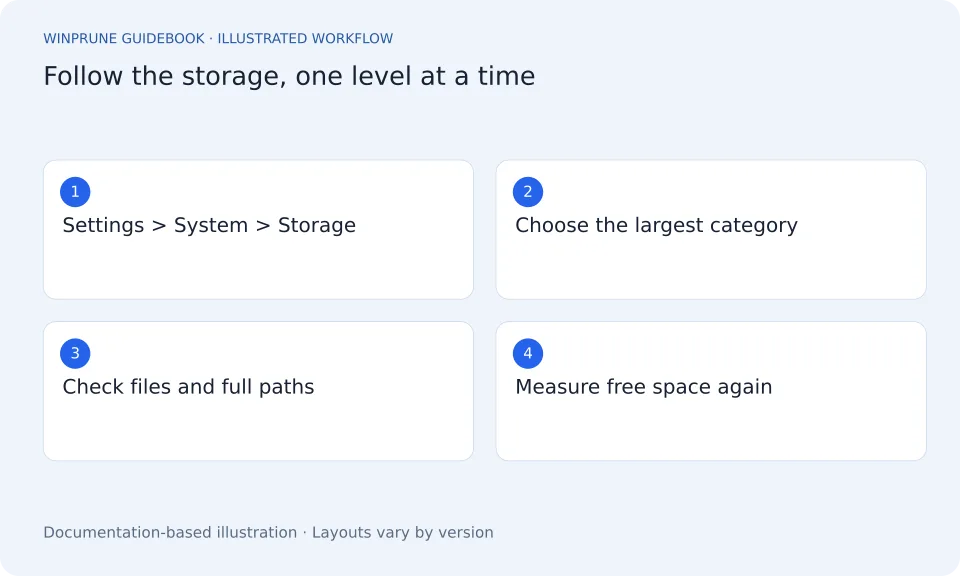
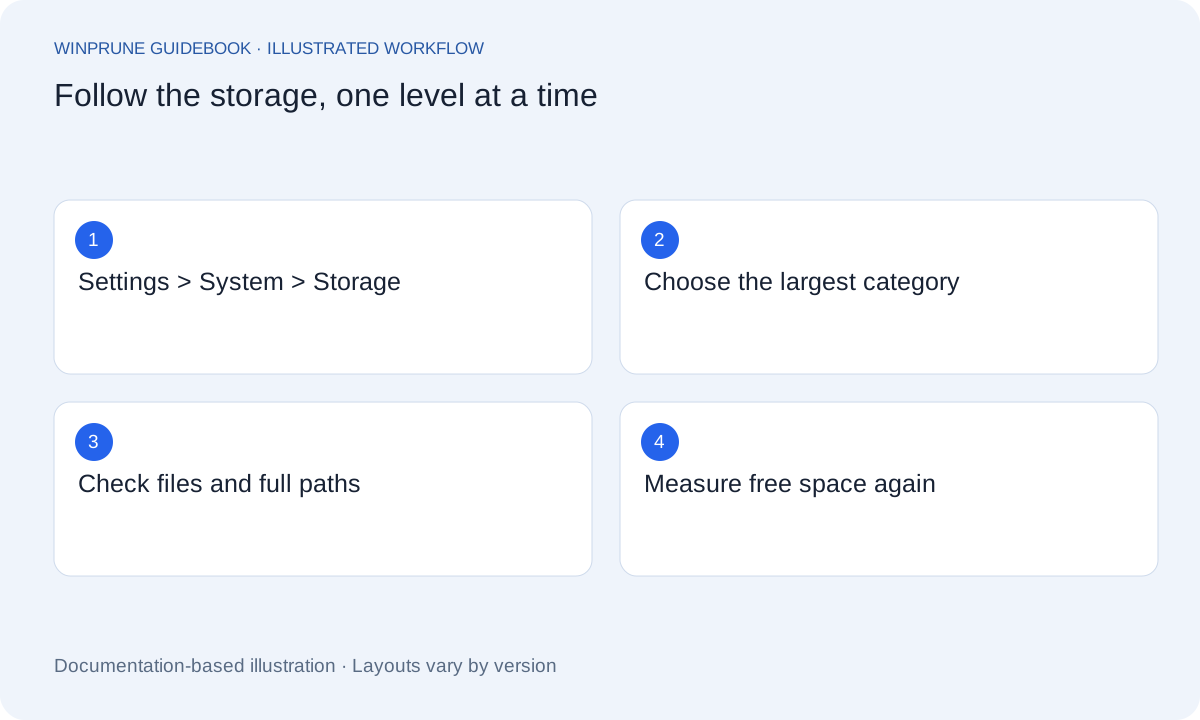
Open Settings → System → Storage. Windows groups usage into categories such as installed apps, temporary files, and system data. Allow the page to finish calculating before drawing conclusions. Open a large category to see the controls Windows provides for it.
- Apps: decide whether you still use the application; use its supported uninstall process.
- Personal files: review Downloads, Videos, Documents, Pictures, and any project or recording folders you created.
- Temporary and system data: read the descriptions in Windows cleanup controls instead of manually removing unfamiliar folders.
Use categories to decide where to look next, rather than treating a category as a list of files that should all be deleted. A large project archive may be worth keeping; a smaller downloaded installer may no longer be needed. Size and usefulness are different questions.
3. Inspect large personal files
In a personal folder, switch File Explorer to Details and sort files by Size. Look at the name, extension, modified date, and full location. Check whether an archive contains your only copy of something, whether a recording belongs to an ongoing project, and whether a download can still be obtained elsewhere.
A Size column is useful for files in the current folder; it is not a complete recursive folder-size report. If a folder still looks important, open it and inspect its contents. Avoid adding together a parent folder and its children as though they were separate storage consumers.
4. Understand cloud files before changing them
OneDrive can show files that are stored online as well as files downloaded locally. If you want to retain a synced file online while removing its local copy, Microsoft provides a Free up space action through Files On-Demand. Check the sync status and whether you will need the file without an internet connection.
5. Choose one action and measure again
- Pick a small, understandable group of files or one unused application.
- If keeping files elsewhere, verify the destination copy opens correctly before removing the original.
- Review any Recycle Bin contents before permanently removing them.
- Return to This PC and compare available space with your starting note.
Make one change at a time. If the result is unexpected, it is much easier to explain one operation than a mixture of uninstalls, sync changes, and manual deletions. Do not assume a cleanup failed simply because a different report has not refreshed yet.
What to leave alone
WinPrune’s Windows installer is not available yet. These instructions use Windows tools, so you can follow them without downloading WinPrune. Check the official download page for release status.
The useful habit is the same with any tool: identify the location, understand the owner, preserve what matters, then measure the result. A clearer view should help you make a decision, not make the decision for you.
Sources & further reading
Windows instructions checked against the official documentation linked here. Controls can vary by Windows version and device configuration.
Put your storage knowledge into practice.
Explore WinPrune and check the current download status. The installer and verified application instructions are still being prepared.
Explore WinPrune Download status WinPrune Pro · $15.99 USD · One-time payment. No recurring billing.