Why a folder may be hidden
Which view setting should you change?
| Setting | What it changes | Recommended boundary |
|---|---|---|
| Hidden items | Shows normally hidden entries in File Explorer | Use to inspect a known path |
| Hide protected operating system files | Controls a separate class of Windows files | Leave enabled for ordinary storage review |
| Ownership and permissions | Changes access rather than visibility | Do not change to force a cleanup |
Microsoft documents the Windows 11 View menu and File Explorer options. Read the Microsoft instructions.
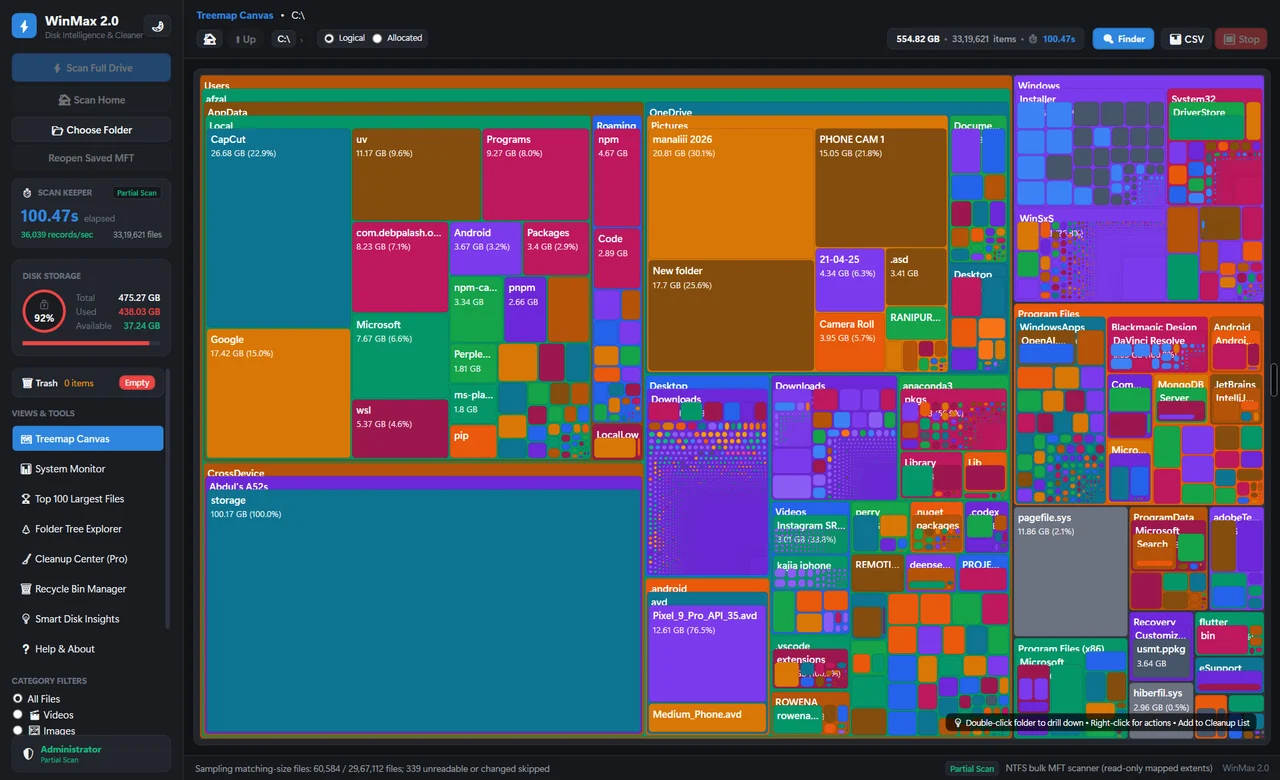
Some folders contain data that you do not normally open directly. Showing them can help you understand a file path, but it does not turn their contents into cleanup candidates. A hidden folder may still be important to an installed application or Windows itself.
For storage investigation, begin with your own folders. If a report points into an unfamiliar hidden location, record the path and determine what created it. You can often answer the question through an application’s settings or documentation without modifying the folder.
Look safely in File Explorer
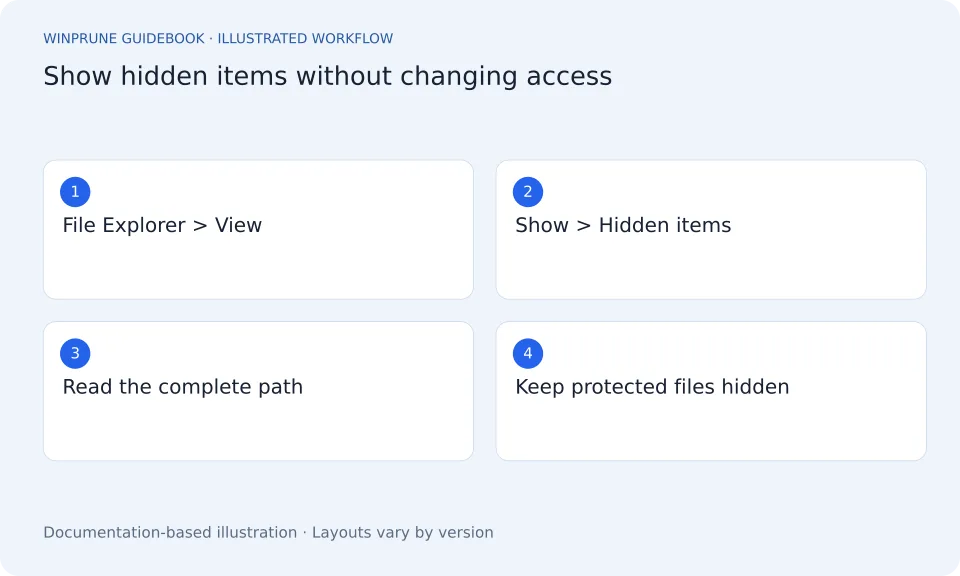
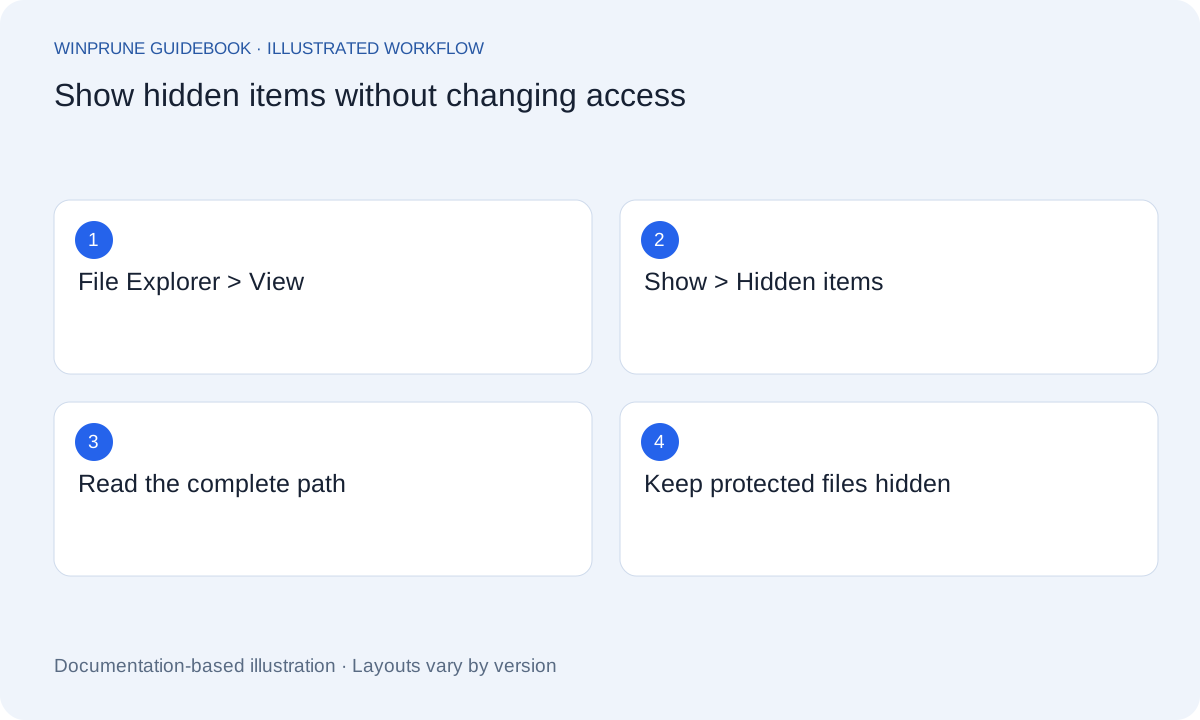
- Press Windows + E and open the folder you are investigating.
- On Windows 11, choose View → Show → Hidden items. On Windows 10, the Hidden items control is on the View tab.
- Read the location and item names. Do not change ownership, permissions, or protected-file settings to force access.
- Turn Hidden items off again if the extra entries make everyday browsing confusing.
Understand the application connection
AppData is commonly encountered during an investigation. It may contain settings, working files, browser profiles, or cached content belonging to applications. The name of a folder and its age are not enough to distinguish a replaceable cache from data the app still needs.
If an application has a documented cache-management option, prefer that option. Close work first, check what the control removes, and confirm that account data and offline content are preserved. If documentation does not explain the folder, leave it in place until you have a reliable answer.
A better next step than guessing
- Record the full path and the application you think owns it.
- Check the vendor’s help for that exact folder or feature.
- Ask an administrator about shared or managed devices.
- Use a documented cleanup or uninstall control when the item is no longer needed.
The result of investigating may simply be “keep this.” That is still useful: you have identified an important folder rather than removing it because it was out of sight. Continue with a different, better-understood storage consumer.
Sources & further reading
Windows instructions checked against the official documentation linked here. Controls can vary by Windows version and device configuration.
Put your storage knowledge into practice.
Explore WinPrune and check the current download status. The installer and verified application instructions are still being prepared.
Explore WinPrune Download status WinPrune Pro · $15.99 USD · One-time payment. No recurring billing.