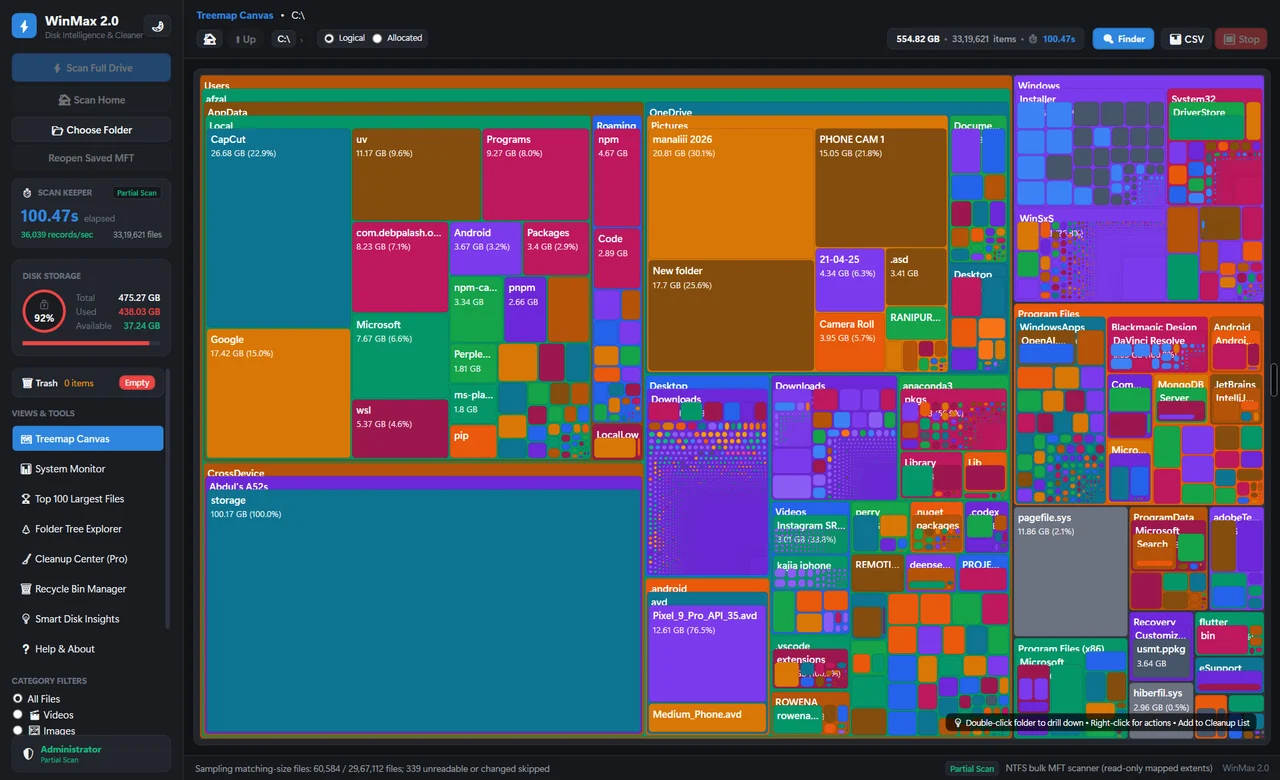
What this folder is for
If maintenance fails after a cleanup
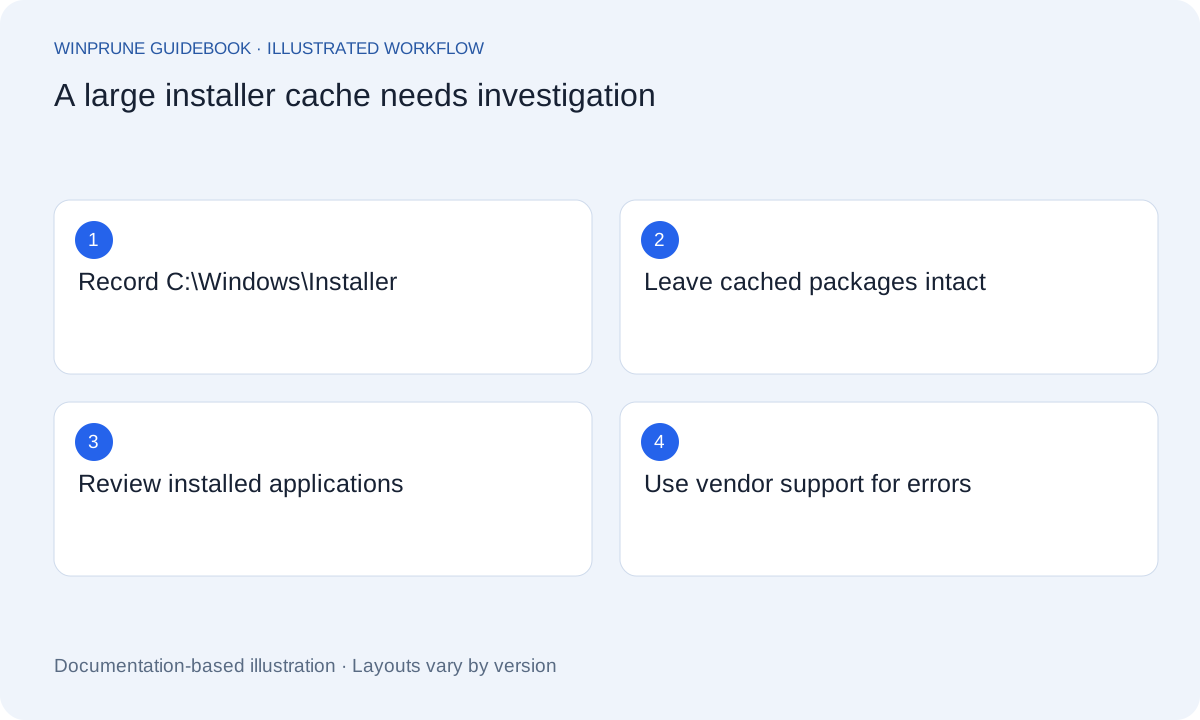
- Stop removing files from the installer cache.
- Record the failing app name, version, complete error message and cleanup history.
- Check whether your established backup or system recovery process covers the affected machine.
- Contact the application vendor or administrator; do not borrow cache files from another PC.
Microsoft explains that missing installer cache files can break repairs and updates, and that these files are machine-specific. Read the Microsoft instructions.
Windows Installer retains important installation data for applications installed through that technology. Its cache is not equivalent to a downloaded installer you saved in your own Downloads folder. Treating both as “old setup files” overlooks their different roles.
The fact that an application works today does not prove every cached file is unnecessary. A repair, update, or uninstall may need that data later. A cleanup can therefore appear successful at first while creating a maintenance problem that only surfaces when you change the application.
Investigate the application footprint instead
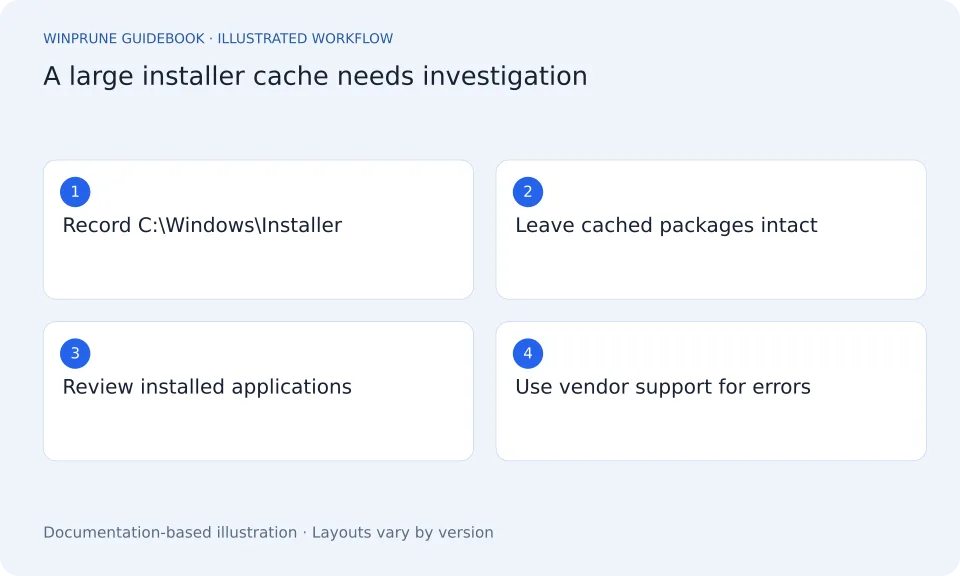
- Note the path and what prompted the investigation. Do not select cached files for deletion.
- Review installed applications in Windows Settings. Decide which applications you actually no longer use.
- Use supported uninstall controls for those applications. Keep any saved-work or account requirements in mind.
- If the cache still seems unusually large, contact the relevant vendor or your IT administrator with the context.
Avoid guessing from names and dates
A timestamp is not an expiry date. An unfamiliar filename is not evidence that a file is orphaned. Without reliable ownership and maintenance information, you cannot safely decide that a cached package belongs to nothing.
Tools that promise to identify unnecessary installer files need more scrutiny than a simple folder-size report. A wrong classification can damage repair or removal workflows. For this guide, the recommended boundary is to leave the cache alone and use supported application maintenance.
If files have already been removed
Stop further cleanup and record what happened. Microsoft directs affected users to the application vendor or support team; recovery may require a broader restoration or reinstall. It also explains that cached files are specific to the machine, so copying a similarly named file from another computer is not a reliable fix.
Find space somewhere better understood
Review personal downloads, large recordings, and unused applications through their normal controls. The safest next step may be a file you recognize on a different part of the drive. A protected cache does not become an appropriate cleanup target simply because another folder is smaller.
Sources & further reading
Windows instructions checked against the official documentation linked here. Controls can vary by Windows version and device configuration.
Put your storage knowledge into practice.
Explore WinPrune and check the current download status. The installer and verified application instructions are still being prepared.
Explore WinPrune Download status WinPrune Pro · $15.99 USD · One-time payment. No recurring billing.