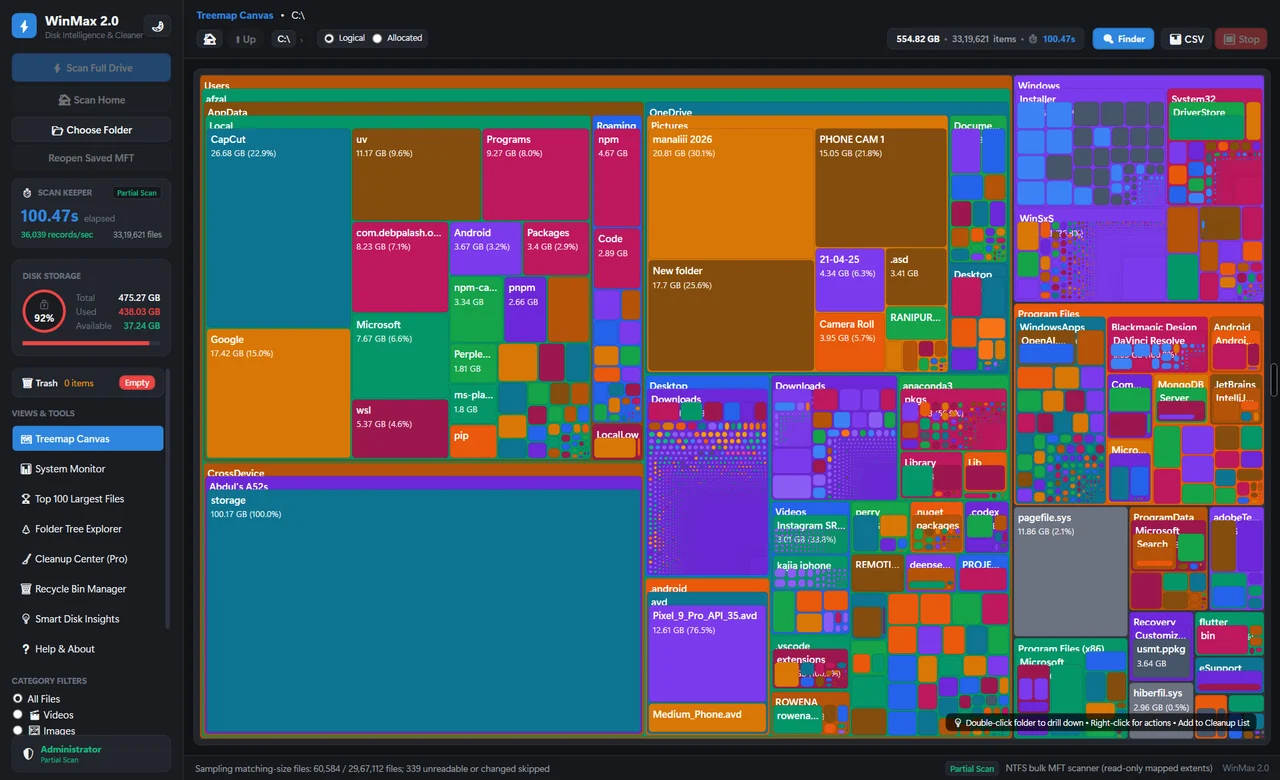
Start with the actual folder
The download history in your browser is a list of past activity. The downloaded files have their own locations on disk. Clearing the browser list does not tell you whether those files have been removed. Open File Explorer and review Downloads, then use the browser’s download details to locate anything saved somewhere else.
An exact first pass in File Explorer
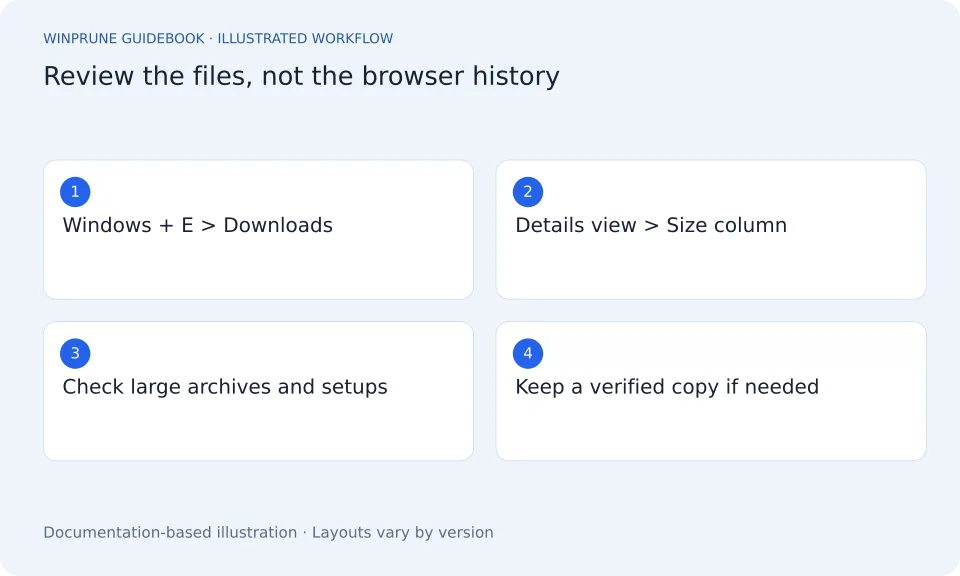
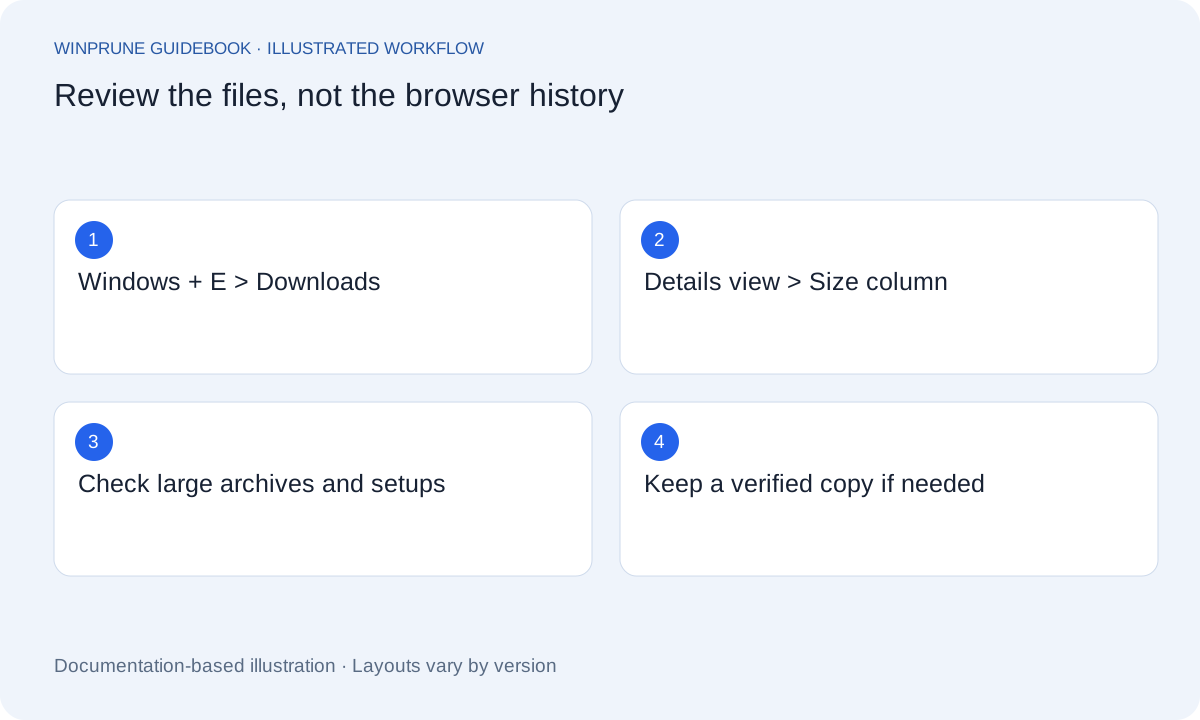
- Press Windows + E and open Downloads. Confirm the address points to your intended personal folder.
- Choose View > Details. Select the Size column heading; select it again if the smallest files appear first.
- Inspect the largest familiar archive or installer. Open an archive to check whether its contents were already extracted.
- Keep required offline installers or unique documents in a deliberate location. Verify a copied file opens before removing the original.
Example: an old downloaded setup file and a Windows Installer cache package are different. Review the setup file in your own Downloads folder; leave C:\Windows\Installer to supported maintenance.
Microsoft describes File Explorer views and navigation. Read the Microsoft instructions.
Review the largest items first
Switch to a view that shows file details and look at the size, type, and date. A recent large recording may matter more than a collection of tiny installers. Open recognizable documents before you decide where they belong. A filename such as setup or backup is not enough to explain why the file is present.
- Check that you are reviewing your own Downloads folder.
- Identify large files and open the ones you still need.
- Move important documents to a deliberate, backed-up location.
- Review old installers and repeated downloads separately.
Keep a copy for a reason
Some installers are useful if you need to reinstall a particular version or work offline. Others can be obtained again from the official publisher. Decide based on your needs rather than assuming every installer is useless once a program is installed. Archives also deserve care: check whether you have already extracted their contents and whether the extracted folder is complete.
Use a reviewable cleanup
Select a small group of files you recognize and use the normal Windows deletion flow where appropriate. Review the Recycle Bin before permanently removing anything. Large files, network locations, and some deletion methods can behave differently, so read the confirmation dialog instead of assuming every item is recoverable.
Measure the result
Check free space on the drive that actually contained the files. If a cloud-synced location was involved, understand its synchronization behavior before repeating the action. If the recovered space is small, return to the storage overview and investigate a larger category. Avoid clearing unrelated system files simply because the Downloads cleanup did not produce the result you expected.
Sources & further reading
Windows instructions checked against the official documentation linked here. Controls can vary by Windows version and device configuration.
Put your storage knowledge into practice.
Explore WinPrune and check the current download status. The installer and verified application instructions are still being prepared.
Explore WinPrune Download status WinPrune Pro · $15.99 USD · One-time payment. No recurring billing.