Set a small, concrete goal
Match the cleanup action to the data
| What occupies space | First action | Check before confirming |
|---|---|---|
| Installed apps | Settings > Apps > Installed apps | Saved projects, game saves and account needs |
| Personal downloads | File Explorer > Downloads > Details | Full path, contents and replacement copy |
| Temporary system data | Settings > System > Storage > Cleanup recommendations | Descriptions and rollback consequences |
| Downloaded OneDrive content | Files On-Demand > Free up space | Successful upload and offline access |
Microsoft explains cleanup recommendations and the consequences of removing previous Windows installations. Read the Microsoft instructions.
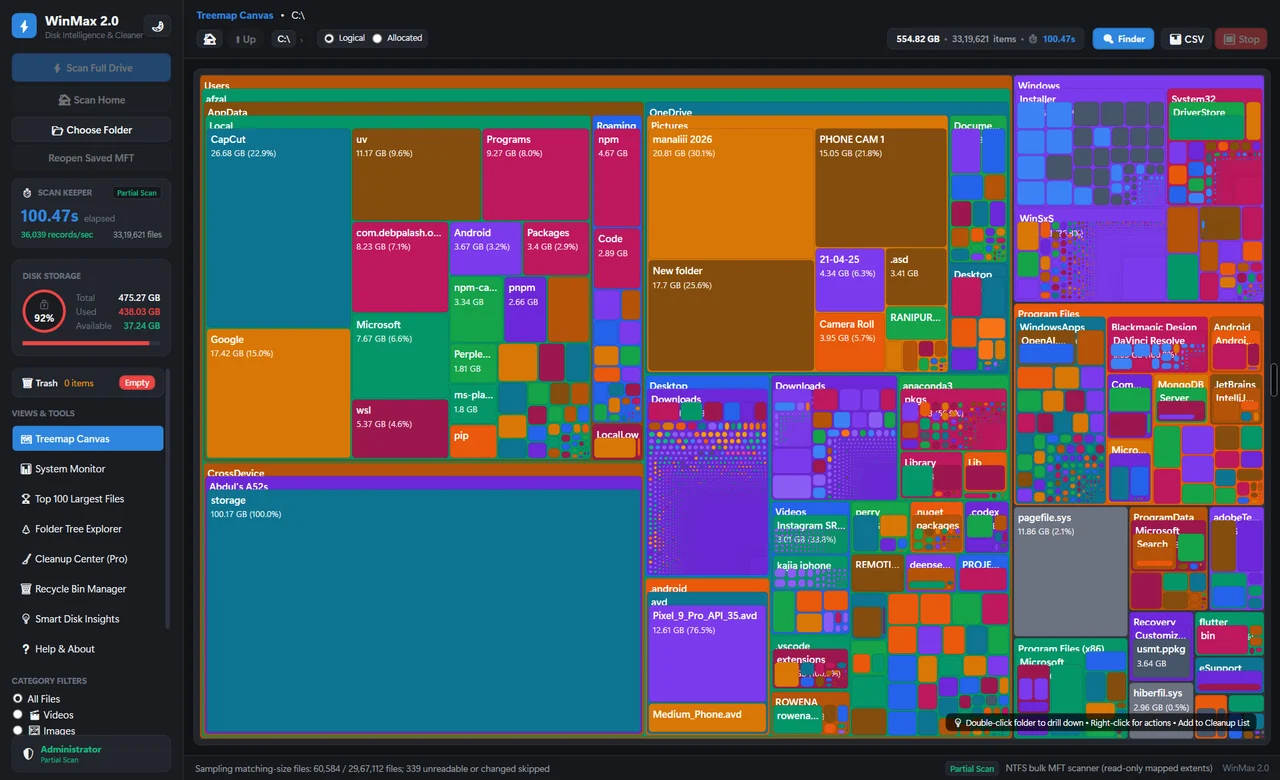
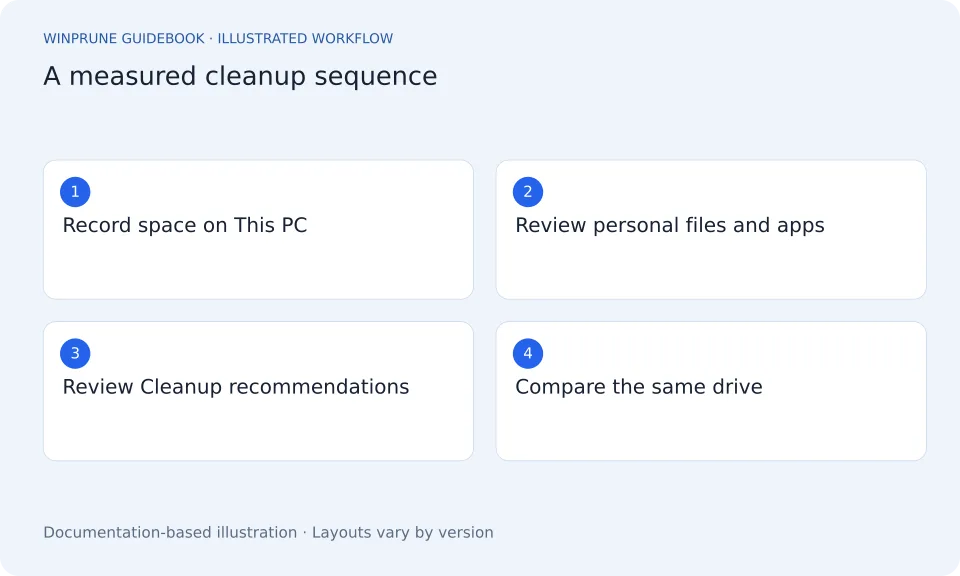
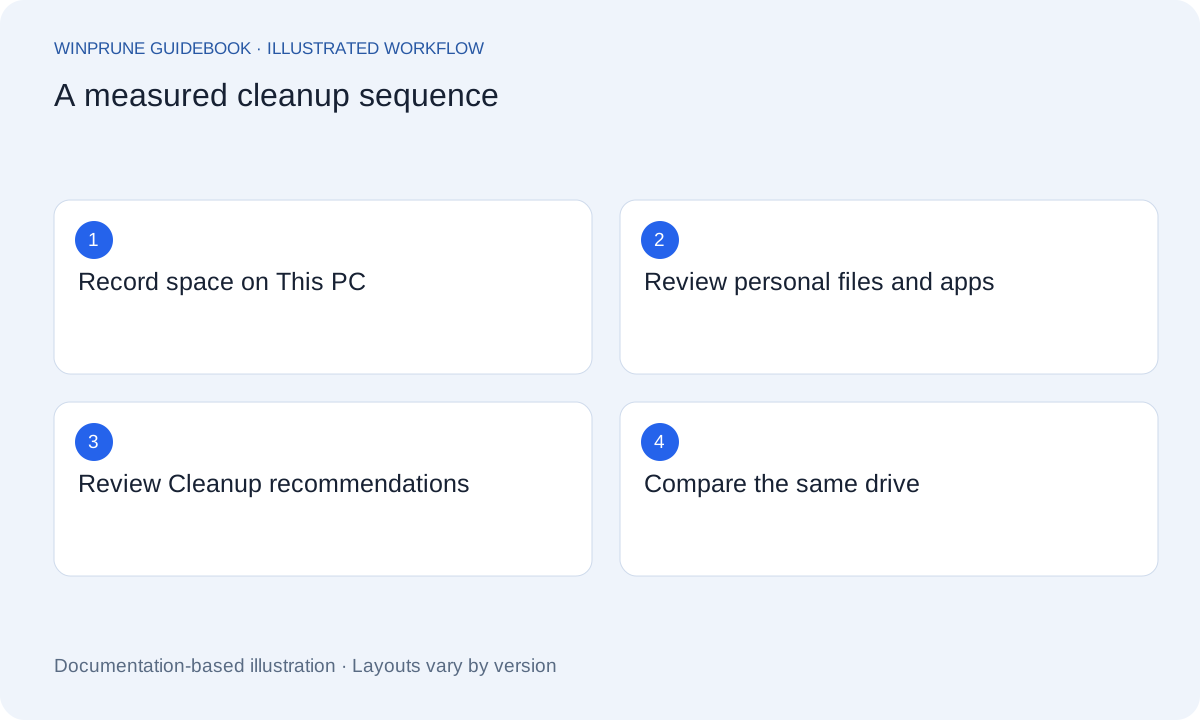
Decide what you need room for: an update, a project, or a downloaded file. Note the free space on the affected drive in File Explorer → This PC. A measured goal helps you avoid deleting useful material after you have already made enough room.
Save your work before cleaning. If a file is important, check that its backup is readable and independent of the location you are about to change. On a shared computer, review only data you are responsible for.
1. Review your personal files
- Open Downloads and switch to Details view. Sort files by Size.
- Check old installers, archives, and recordings individually. Confirm that the file is no longer required.
- For something worth keeping, copy it to an appropriate destination and open the copied file to verify it.
- Remove the original only after you are satisfied with the backup or replacement.
Moving a file to another folder on the same drive does not reclaim capacity. A shortcut also is not a backup of the file it points to. Choose a different storage destination when the goal is freeing the original drive.
2. Uninstall through supported controls
If an app or game is no longer needed, use Windows Settings or its supported uninstaller. On Windows 11, open Settings → Apps → Installed apps, locate the app, and choose Uninstall from its menu. Read any prompts about saved data and account information.
Deleting an installed application’s folder is not a substitute for uninstalling it. If the uninstall fails, consult that application’s support rather than manually removing system or installer files.
3. Review Windows cleanup categories
For Windows 11, open Settings → System → Storage → Cleanup recommendations. Review the categories and selected entries, then clean only the items whose purpose you understand. The availability and wording of categories can vary between devices.
4. Treat synced files separately
For OneDrive content you wish to keep online, investigate Files On-Demand and the Free up space action. Check successful synchronization first and consider whether you need the files offline. Do not use ordinary deletion when the intent is only removing a local copy.
5. Recheck the result
- Inspect the Recycle Bin for anything you still need before permanently removing contents.
- Return to This PC and compare the affected drive with your starting number.
- Keep a note of what you changed. If the drive fills again, look for a recurring source instead of repeating larger deletions.
Make the routine repeatable
A regular review of your own download and project folders is easier to explain than an occasional sweep through unfamiliar system directories. If you enable automatic cleanup, read its retention settings and confirm which folders it affects. Keep a review step wherever an action could remove data you still want.
Sources & further reading
Windows instructions checked against the official documentation linked here. Controls can vary by Windows version and device configuration.
Put your storage knowledge into practice.
Explore WinPrune and check the current download status. The installer and verified application instructions are still being prepared.
Explore WinPrune Download status WinPrune Pro · $15.99 USD · One-time payment. No recurring billing.