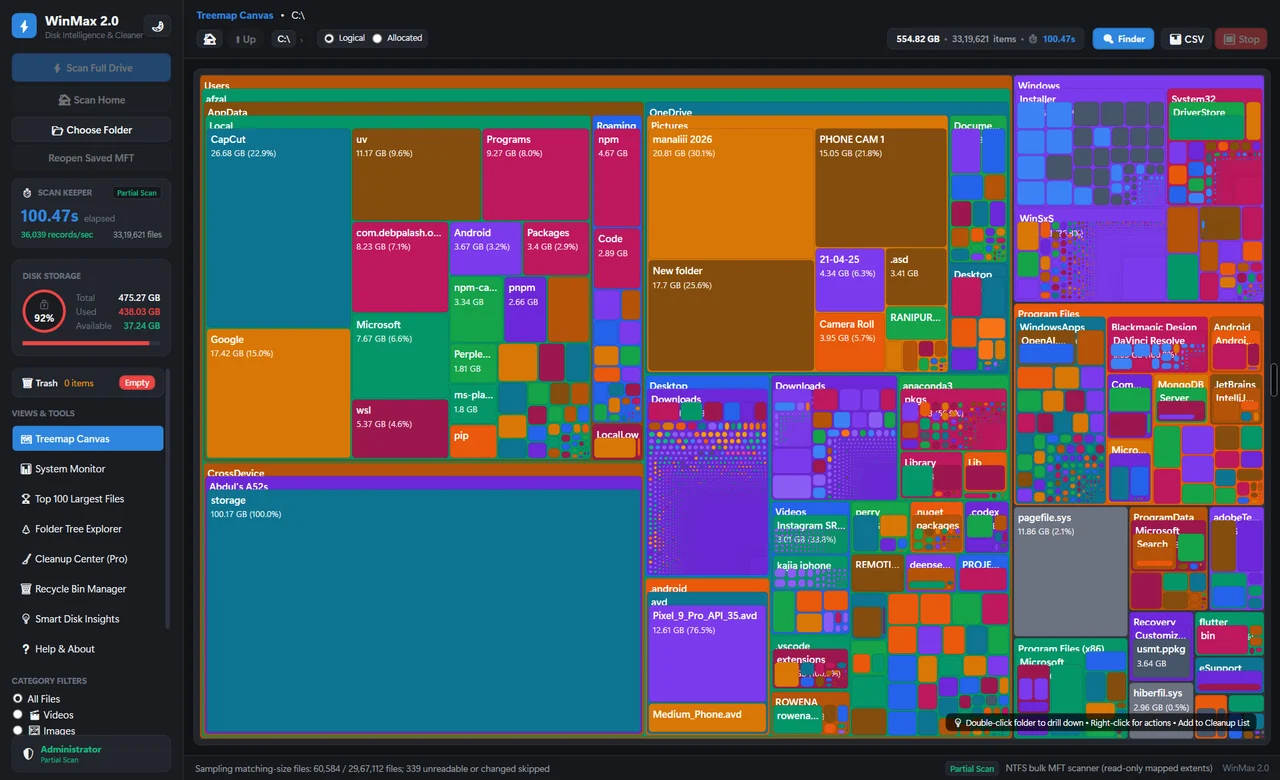
A “low disk space” warning, failed Windows updates, or apps that refuse to install usually mean the system drive (normally C:) has run out of room. Fixing a Windows storage issue is mostly about finding the few large things that matter, not deleting many small files. This guide works for Windows 11 and Windows 10; menu names differ slightly between versions.
Confirm which drive is full
Open File Explorer and select This PC. Each drive shows a bar and the free space remaining. If C: is full but another drive has room, your fix is often to move personal files rather than delete anything. If the drive is an external disk or a memory card, the steps below still apply, but Windows Storage settings focus on the system drive by default.
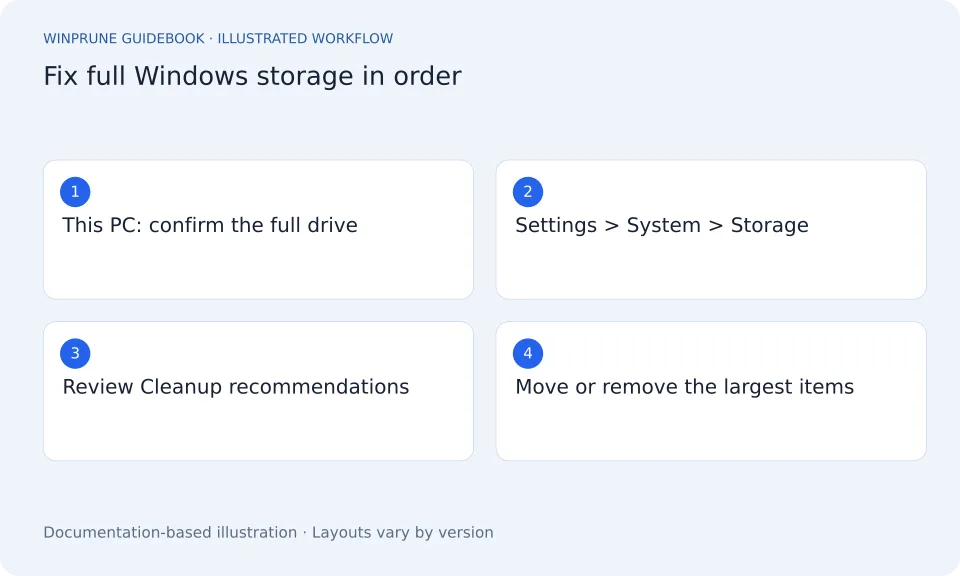
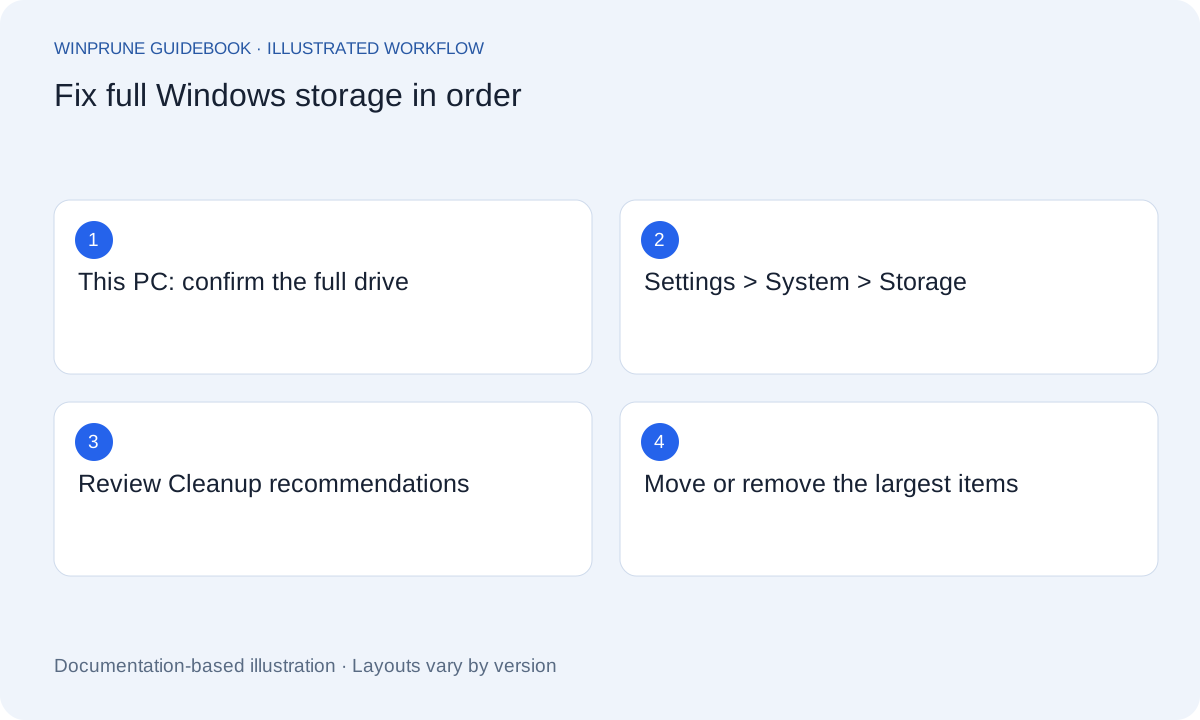
Work through the fixes in this order
- Settings → System → Storage: note the size of each category, and select Show more categories to see everything.
- Open the Recycle Bin, check for anything you still need, then empty it.
- Select Cleanup recommendations (Windows 11) and review temporary files, large or unused files, files synced to the cloud, and unused apps.
- Open Temporary files and read each category before selecting it. Leave Downloads unselected unless you have reviewed that folder.
- Uninstall apps and games you no longer use from Settings → Apps → Installed apps.
- Move large videos, photos and archives you want to keep to another drive, or let OneDrive keep them online-only.
- Check free space again in This PC and stop once you have a comfortable margin.
| What you see in Storage settings | Likely cause | Safe first action |
|---|---|---|
| Apps & features is largest | Large games or creative software | Uninstall what you no longer use |
| Temporary files is large | Update leftovers, previous Windows installation, Downloads | Review each category before selecting |
| Videos, Pictures or Documents | Personal files and exports | Move to another drive or online-only OneDrive |
| Other or folders you do not recognise | Project folders, VM images, app data | Investigate the folder path before removing |
| System & reserved | Windows, page file, hibernation, restore points | Read the System & reserved guide first |
Turn on Storage Sense for the future
Storage Sense can clear temporary files and empty the Recycle Bin on a schedule. Open Settings → System → Storage → Storage Sense, review how long files stay in the Recycle Bin and Downloads, and decide whether cloud content should become online-only after a period without use. Choose settings you would be comfortable with if they ran tomorrow.
If the drive fills up again quickly
Compare the category sizes a day apart. A category that grows quickly points to the cause: a sync client downloading files, a game update, a recording app, or a backup tool writing locally. Fix the source by changing where that app saves data, rather than repeating a cleanup every week. If the drive is simply too small for how you use the PC, read how to increase storage on Windows.
Sources & further reading
Windows instructions checked against the official documentation linked here. Controls can vary by Windows version and device configuration.
Put your storage knowledge into practice.
Explore WinPrune and check the current download status. The installer and verified application instructions are still being prepared.
Explore WinPrune Download status WinPrune Pro · $15.99 USD · One-time payment. No recurring billing.