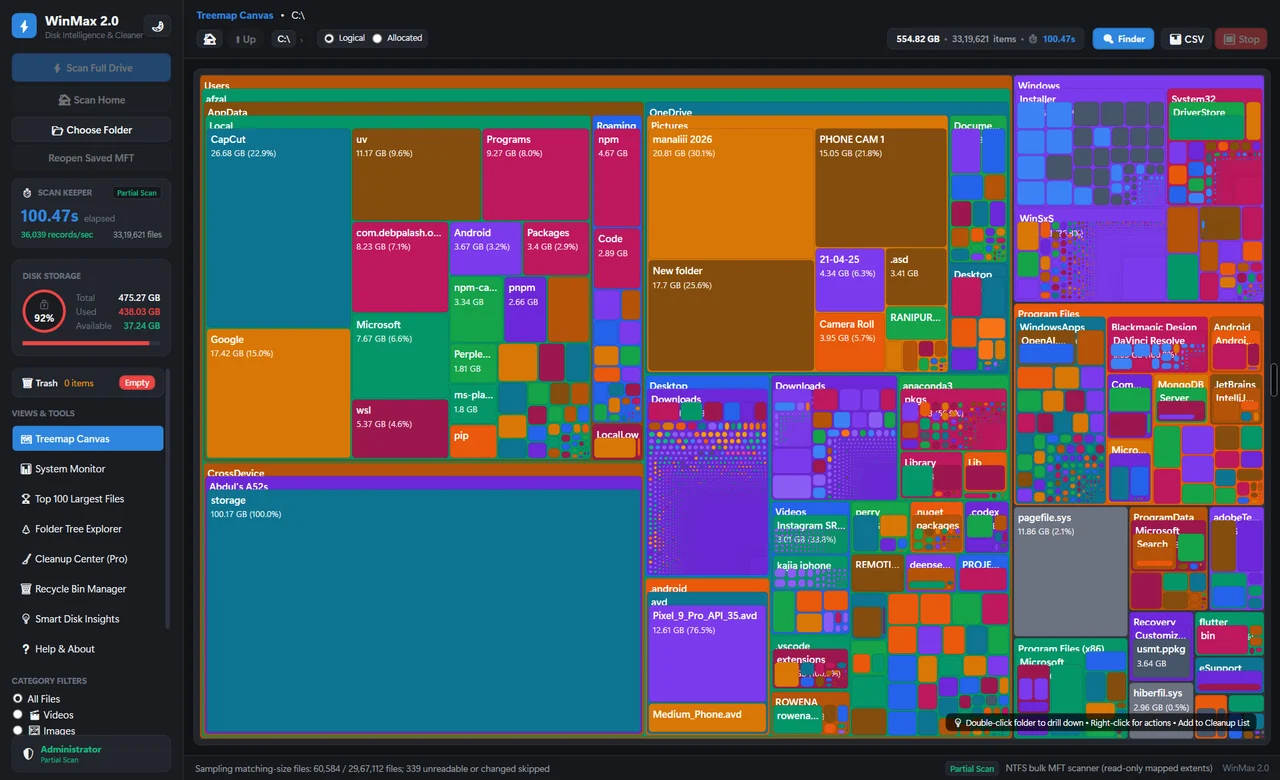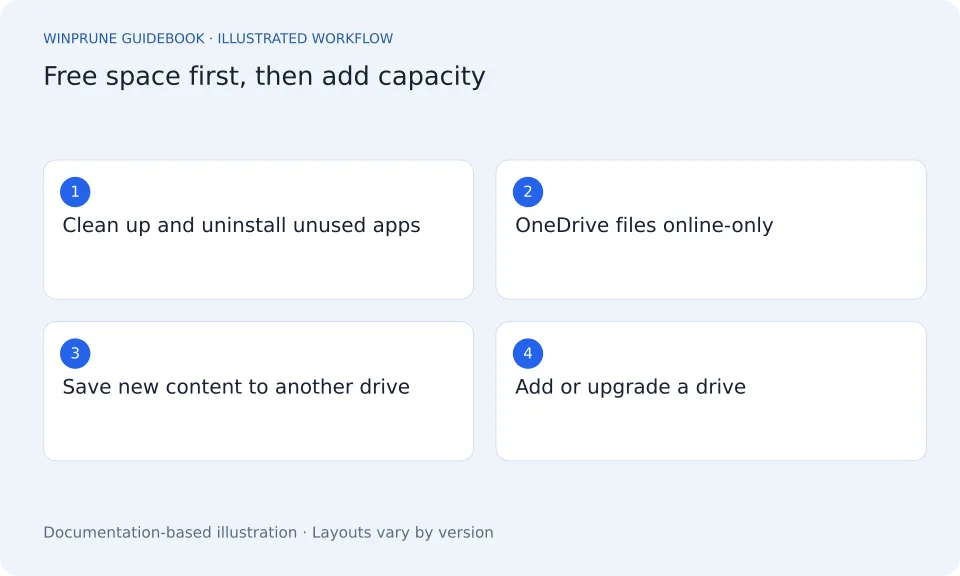
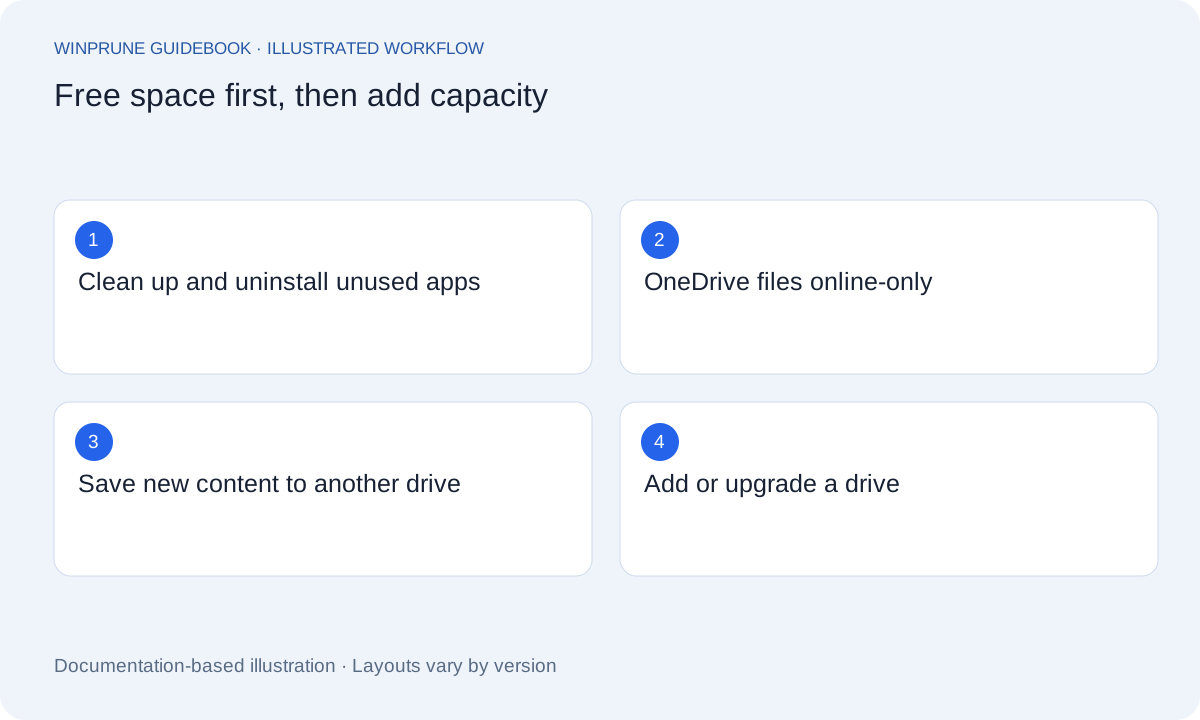
“Increasing storage” can mean two different things: getting more free space on the drive you already have, or adding capacity. The first is free and quick. The second costs money but solves the problem permanently. Start with the free options, measure the result, and only then decide whether you need new hardware.
Free options: get more out of your current drive
- Review Cleanup recommendations in Settings → System → Storage and remove what you have checked.
- Uninstall apps and games you no longer use.
- Use OneDrive Files On-Demand so files you rarely open stay online-only and do not occupy local space.
- Move large personal folders such as Videos or old projects to another drive.
- Change where new content is saved so new apps, documents, music and photos go to a second drive.
- Move apps that support it: in Settings → Apps → Installed apps, open the app’s menu and choose Move where the option is offered.
- Review System & reserved settings such as restore-point usage and hibernation before changing them.
Change where new content is saved
In Windows 11 open Settings → System → Storage → Advanced storage settings → Where new content is saved. In Windows 10 the link is Change where new content is saved under Storage. Choose a second drive for new apps, documents, music, photos and videos. This affects new content only; existing files stay where they are until you move them.
Add capacity: external drive, second drive or larger SSD
| Option | Best for | Things to check |
|---|---|---|
| External USB drive | Archives, photos, video and backups | Keep a second copy of anything important; external drives can be lost or fail |
| Second internal drive | Desktops and laptops with a free M.2 or 2.5-inch bay | Check the slot type in your PC manual before buying |
| Replace with a larger SSD | Laptops with a single slot | Back up first; clone the drive or do a clean Windows install |
| Extend the C: partition | A disk with unallocated space directly after C: | Back up first; Disk Management only extends into adjacent unallocated space |
Which option should you choose?
If your PC has never been cleaned up, free space first; many full drives have tens of gigabytes in old apps, downloads and personal videos. If you regularly fill the drive within weeks, the drive is too small for how you use the PC, and a second or larger drive is the real fix. Change where new content is saved as soon as you add a drive, so C: keeps room for Windows updates.
Sources & further reading
Windows instructions checked against the official documentation linked here. Controls can vary by Windows version and device configuration.
Put your storage knowledge into practice.
Explore WinPrune and check the current download status. The installer and verified application instructions are still being prepared.
Explore WinPrune Download status WinPrune Pro · $15.99 USD · One-time payment. No recurring billing.