Match the change to the symptom
Record a comparison you can reverse
| Record | Before changing | After the next sign-in |
|---|---|---|
| App | Name and publisher you recognize | Confirm the same app is no longer auto-started |
| Setting | On or Enabled | Off or Disabled |
| Symptom | When the delay occurs and what is busy | Whether the same delay still occurs |
| Decision | Why the app is optional at sign-in | Keep the change or restore the original setting |
Microsoft documents both Settings and Task Manager startup controls. Read the Microsoft instructions.
A PC that feels busy just after sign-in is a different problem from a PC that struggles while exporting a video or installing an update. Note when the slowdown happens and what is running. Changing startup behavior is worth considering when the problem actually occurs around sign-in.
Do not promise yourself a specific speedup. Startup activity is one factor among many, and the effect depends on the apps, hardware, and workload. Make a small change and compare the experience under similar conditions.
Review through Settings
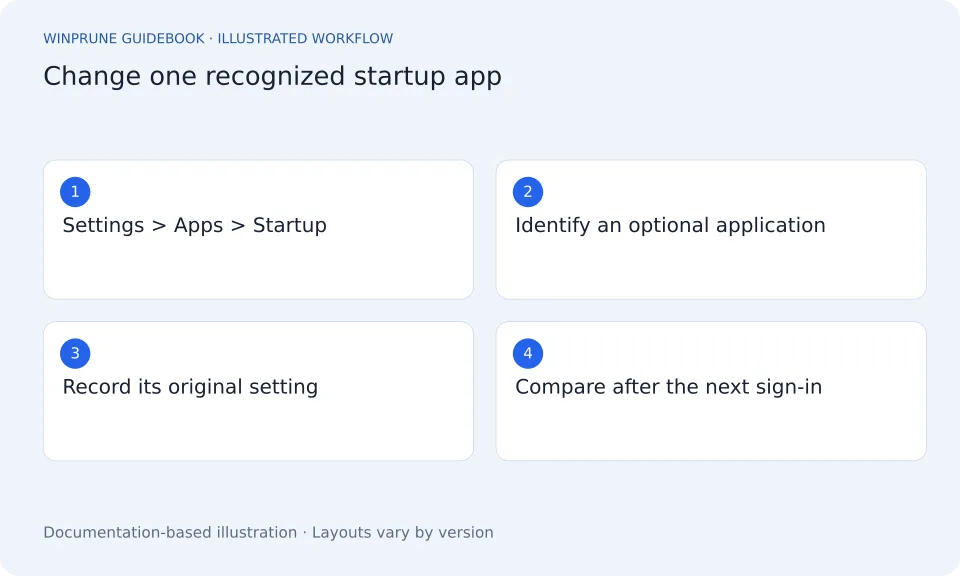
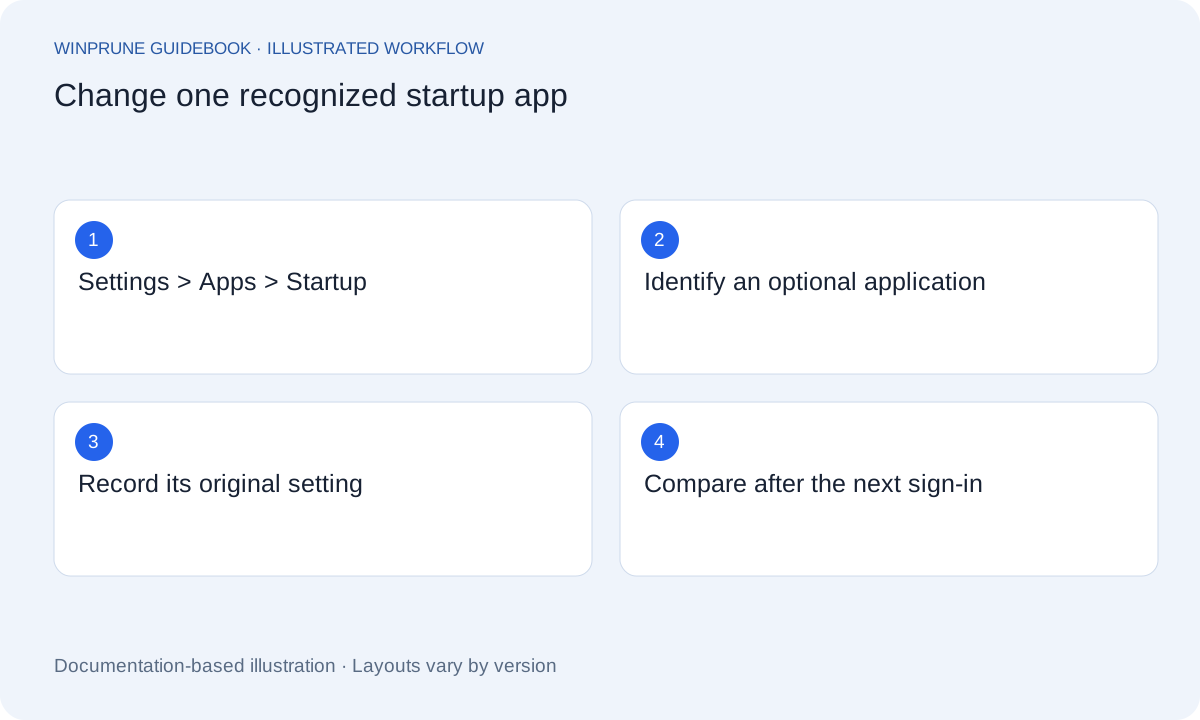
- Save current work and open Settings → Apps → Startup.
- Read the application names and publishers. Choose an optional app you recognize and do not need immediately after sign-in.
- Set that app to Off. Keep a note of the original setting.
- At a convenient time, sign in again or restart after saving work, then observe the same symptom.
Use Task Manager for more context
Microsoft also documents startup management in Task Manager. Right-click Start and choose Task Manager, then open Startup apps. It presents the registered list with startup-impact information and Enable or Disable actions.
Startup impact is a clue about activity around startup, not a universal score of an app’s quality or importance. An application you need may legitimately do work when you sign in. Do not use the highest impact label as an automatic instruction to disable it.
Know how to reverse it
- Return to the same Startup settings list.
- Find the entry you changed and switch it back On, or use Enable in Task Manager.
- If the entry is missing, consult the app’s own startup preference or vendor help instead of editing the registry.
Separate performance from capacity
Disabling startup does not remove installed files. If your concern is a full drive, inspect storage categories and unused apps separately. If the concern is active resource use, inspect what is running and avoid ending unfamiliar system processes.
Keep the experiment explainable: one recognized app, one recorded setting, and one comparison. If nothing improves, restore the setting if you prefer and investigate the next plausible cause rather than making a large batch of unknown changes.
Sources & further reading
Windows instructions checked against the official documentation linked here. Controls can vary by Windows version and device configuration.
Put your storage knowledge into practice.
Explore WinPrune and check the current download status. The installer and verified application instructions are still being prepared.
Explore WinPrune Download status WinPrune Pro · $15.99 USD · One-time payment. No recurring billing.