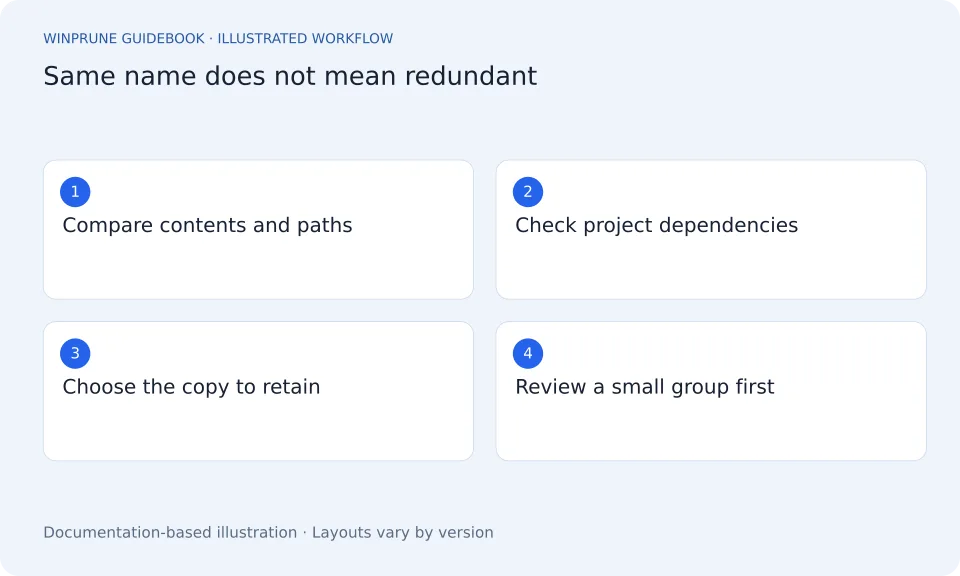
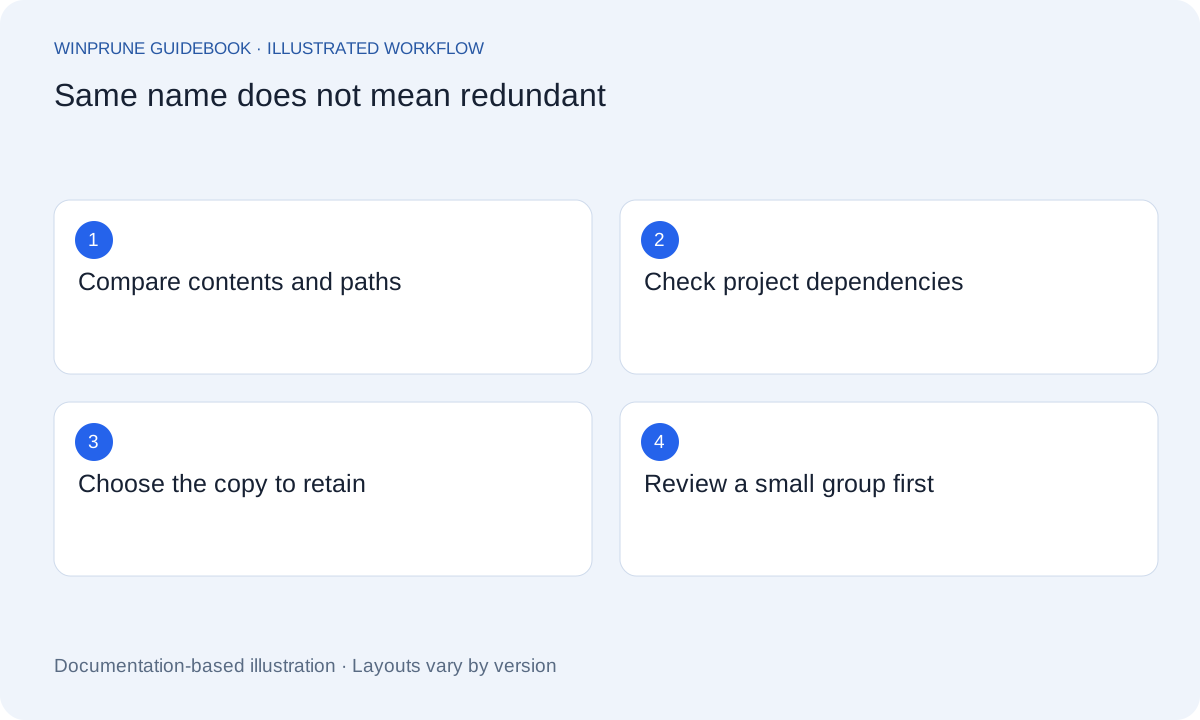
Begin with a folder you understand
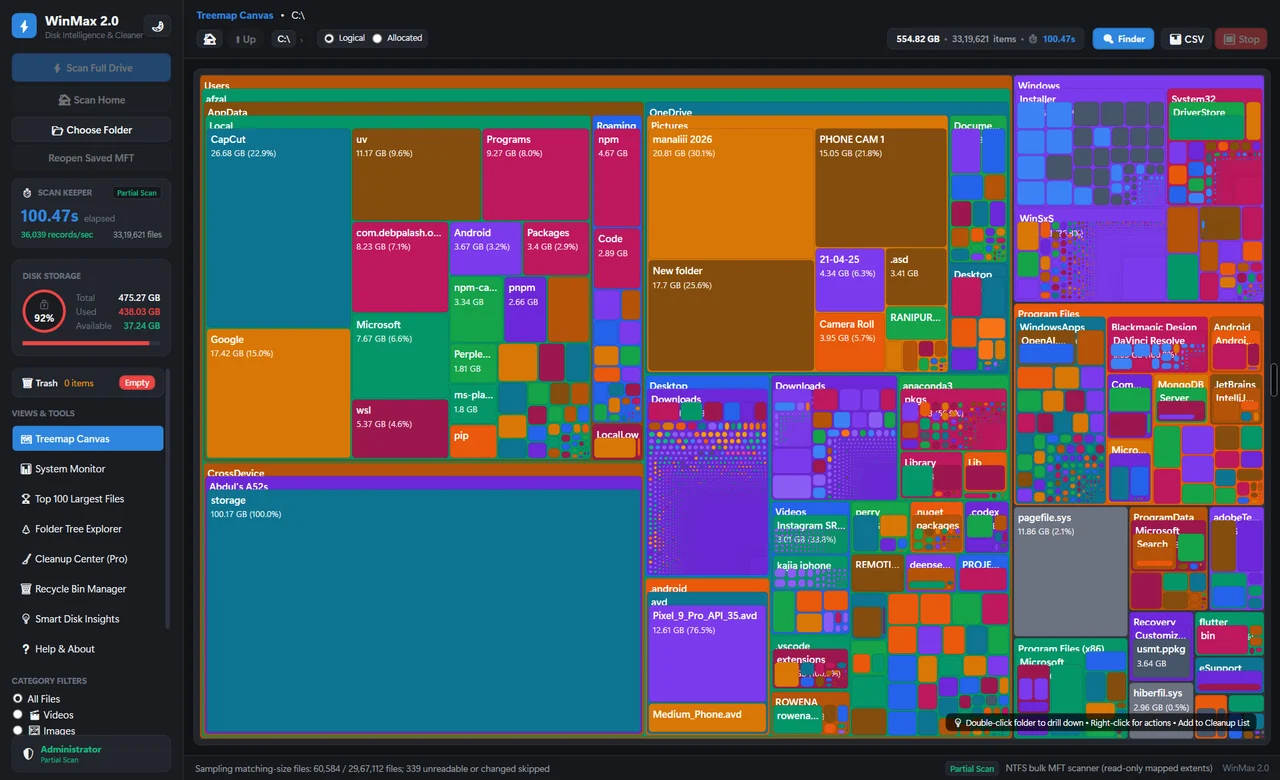
Choose a personal folder such as downloaded archives or exported photos. Start with material you created or downloaded yourself rather than Windows or application directories. Many programs keep files with the same name in different locations because each copy serves a separate purpose. A repeated name alone is not a reason to remove them.
Optional: compare exact contents with PowerShell
For two personal files you already recognize, a SHA-256 hash can help determine whether their bytes match. Replace the example paths below with the two intended files. These commands read files and print their hashes; they do not remove anything.
Get-FileHash -LiteralPath 'C:\Users\YourName\Downloads\photo.jpg' -Algorithm SHA256
Get-FileHash -LiteralPath 'D:\Archive\photo.jpg' -Algorithm SHA256
Matching SHA-256 values provide strong evidence of identical file contents. They do not prove that either path is unnecessary. A project, app or shared workflow may still require both locations. Different values mean you should investigate the versions instead of treating them as exact duplicates.
Microsoft documents the read-only Get-FileHash cmdlet. Read the Microsoft instructions.
Compare more than names
Review file type, size, modified date, and full path. Open the files where appropriate and compare their contents. A later date might reflect a copy operation rather than a meaningful edit. Two photos with similar names can have different edits or metadata; two documents can contain changes that are not obvious from the filename.
- Limit the first review to a personal folder you recognize.
- Compare paths, file types, sizes, dates, and actual contents.
- Identify the copy used by your current projects or applications.
- Back up important originals before removing redundant copies.
Choose the copy to keep deliberately
The best retained copy is the one in a location you can explain and maintain. Check whether a project, shortcut, library, or workflow expects the file at a particular path. A byte-for-byte match does not mean every path is interchangeable. Moving or deleting a copy can break a reference even when another identical file remains elsewhere.
Handle synced and shared files carefully
Review OneDrive status and shared-folder ownership before deleting a redundant-looking copy. A local cleanup can synchronize a deletion, and a shared file may be part of somebody else’s workflow. Avoid using similarity as a shortcut for deciding ownership. Check with the file owner when you cannot establish why a shared copy exists.
Make a small, reversible first pass
Remove a small group of reviewed personal duplicates through a normal deletion flow, then confirm the remaining files open and current work still behaves as expected. Keep the recovery route available while checking. Measure the actual space returned on the relevant drive. A huge list of duplicate names can contain many tiny files; prioritize useful decisions rather than trying to make the duplicate count reach zero.
Sources & further reading
Windows instructions checked against the official documentation linked here. Controls can vary by Windows version and device configuration.
Put your storage knowledge into practice.
Explore WinPrune and check the current download status. The installer and verified application instructions are still being prepared.
Explore WinPrune Download status WinPrune Pro · $15.99 USD · One-time payment. No recurring billing.