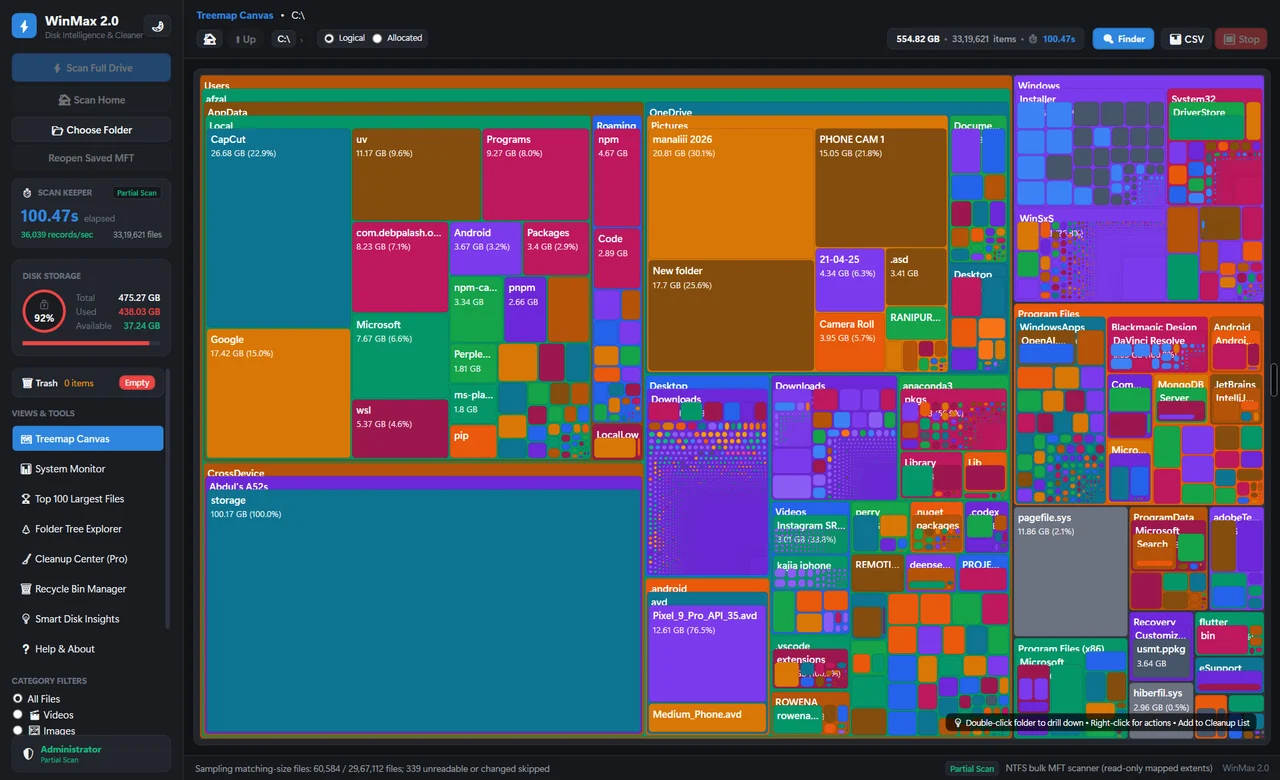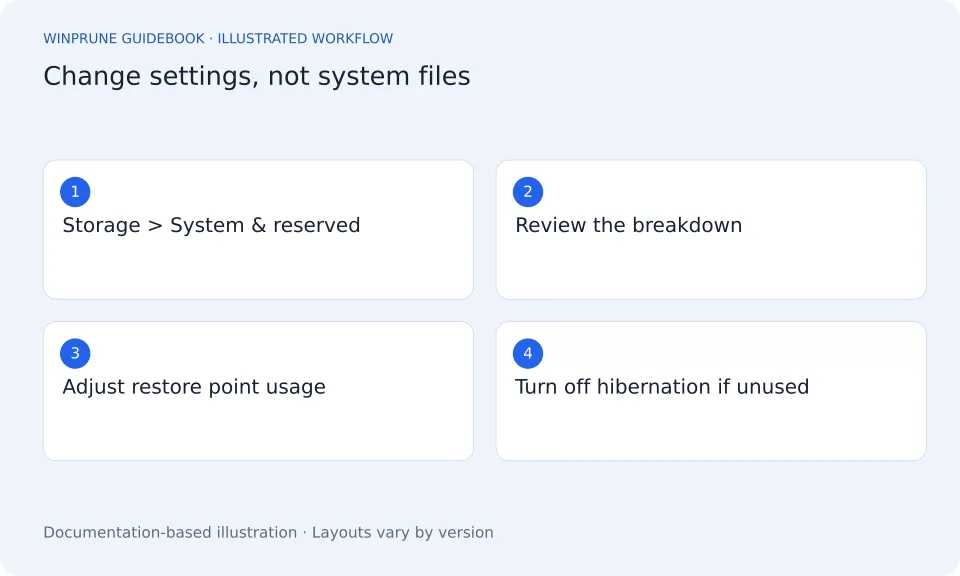
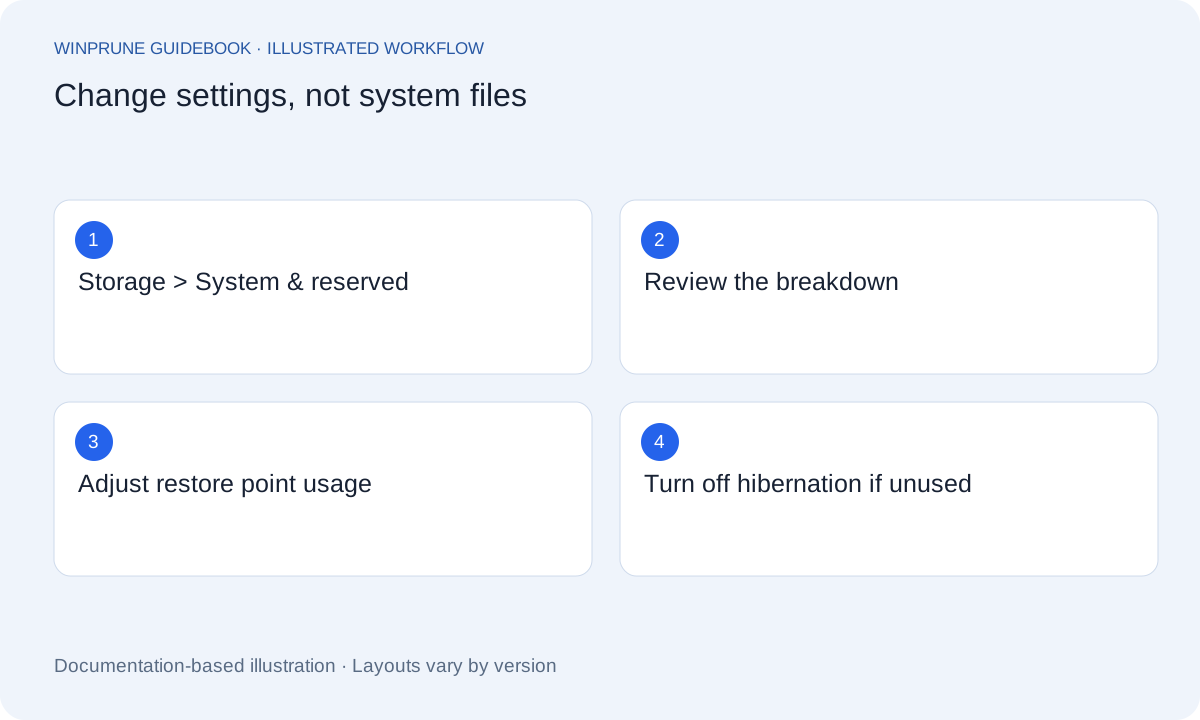
When you analyse Windows storage in Settings → System → Storage, System & reserved is often one of the largest categories, sometimes over 20 GB. Select it (under Show more categories in Windows 11) to see the breakdown. Most of it is required, but two parts depend on your settings.
What each part of System & reserved means
| Item | What it is | Can you change it? |
|---|---|---|
| System files | Windows itself | No — leave it alone |
| Reserved storage | Space Windows sets aside so updates can install | Generally leave it enabled |
| Virtual memory | The page file Windows uses alongside RAM | Leave it managed by Windows unless you have a specific reason |
| Hibernation file | Stores memory contents for hibernation and Fast startup | Yes — by turning hibernation off |
| System restore | Restore points created by System Protection | Yes — by lowering the maximum usage |
Reduce restore point usage
Search for Create a restore point, select the system drive, choose Configure, and adjust Max Usage. Lower usage keeps fewer restore points, so you have fewer points to roll back to. Deleting all restore points frees the space immediately but removes that recovery option, so keep at least a recent one if you rely on System Restore.
Turn off hibernation if you do not use it
Hibernation and Fast startup rely on hiberfil.sys. If you never hibernate the PC, an administrator can run powercfg /hibernate off in Terminal to remove the file. This also turns off Fast startup. You can reverse it with powercfg /hibernate on.
- Open Terminal as administrator.
- Run powercfg /hibernate off.
- Check Settings → System → Storage again to measure the change.
- Run powercfg /hibernate on if you need hibernation back.
When System & reserved looks too large
A large System & reserved figure is normal after a major Windows update, on PCs with lots of RAM (a bigger hibernation file and page file), or when System Protection has a high usage limit. If space is tight, change the two settings above first, then look at other categories with the Windows storage full checklist. Most space you can safely reclaim is usually in apps, temporary files and personal files, not here.
Sources & further reading
Windows instructions checked against the official documentation linked here. Controls can vary by Windows version and device configuration.
Put your storage knowledge into practice.
Explore WinPrune and check the current download status. The installer and verified application instructions are still being prepared.
Explore WinPrune Download status WinPrune Pro · $15.99 USD · One-time payment. No recurring billing.