WinPrune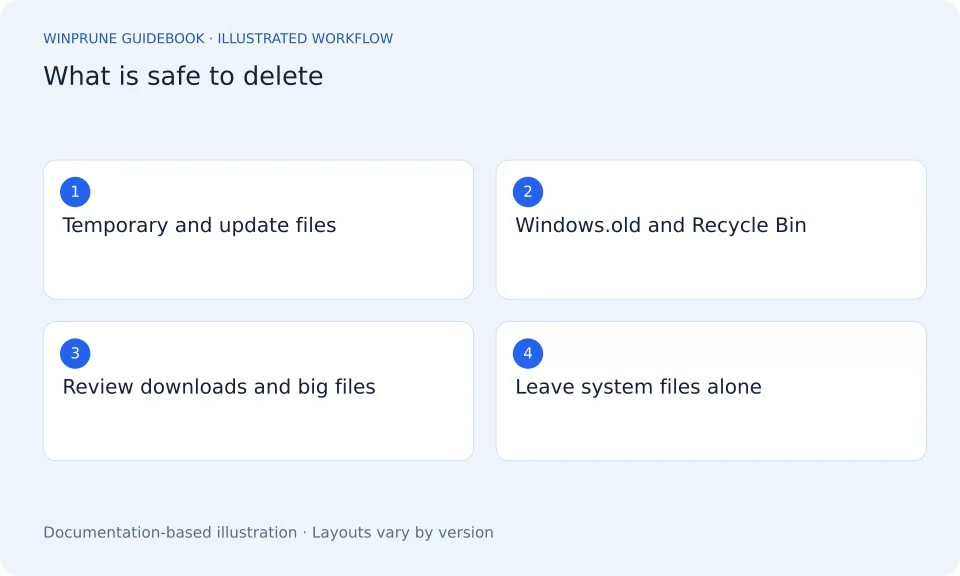
When your C: drive turns red, a game will not install or Windows warns about low disk space, the first question is always the same: what can I actually delete without breaking anything? Search results tend to give either “run Disk Cleanup” or a list of scary system folders. This guide is the practical middle: a plain safe-to-delete list for Windows 11 and Windows 10, with the exact place to remove each item.
My C: drive is full. What should I delete first?
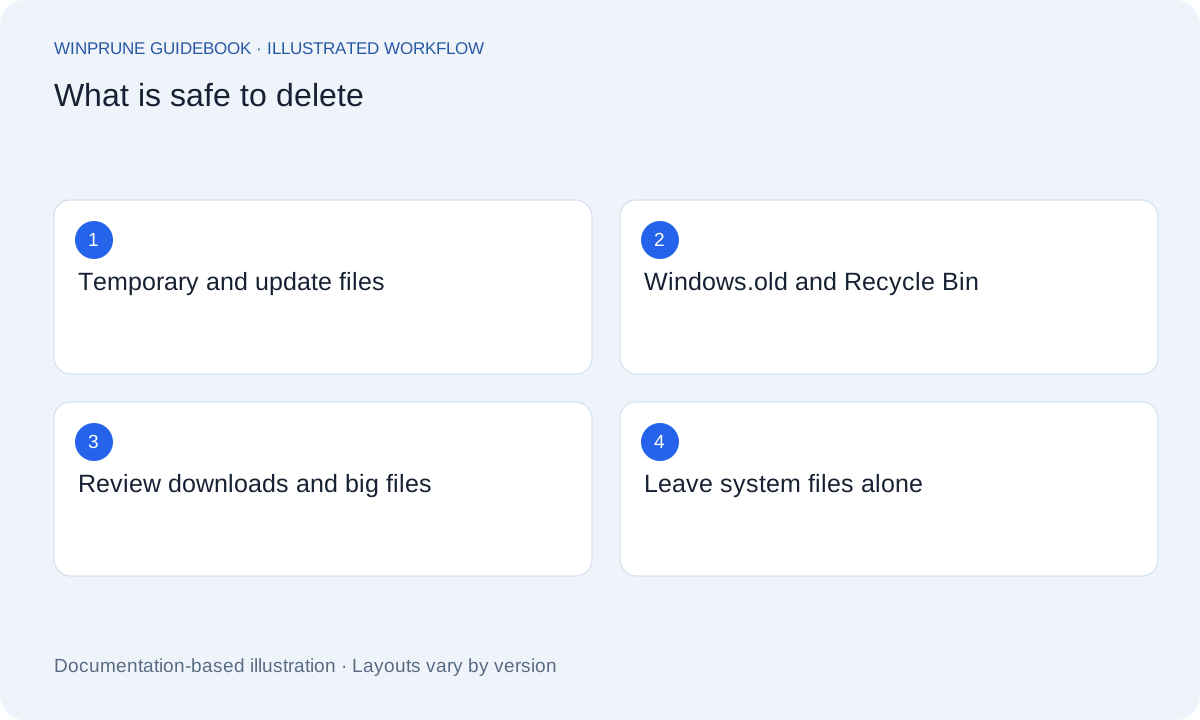
Start with the items that are guaranteed safe and handled by Windows itself, then move to your own files. In most PCs, these give back the most space for the least risk:
- Temporary files and old Windows update files, through Settings → System → Storage → Temporary files.
- A previous Windows installation (Windows.old), if you upgraded recently and everything works.
- The Recycle Bin, after a quick look for anything you still need.
- Old downloads: installers, ZIP files and videos you have already used.
- Apps and games you no longer play or use, uninstalled from Settings → Apps → Installed apps.
After each step, open This PC and check the free space on C:. If one step frees enough room, you can stop there.
What files are safe to delete on Windows?
Use this table as your checklist. “Safe” means Windows rebuilds it or you lose nothing you need. “Check first” means it is often safe, but only you know whether you still need it. “Never by hand” means leave it alone or use the Windows tool listed.
| Item | Safe to delete? | How to remove it |
|---|---|---|
| Temporary files (%TEMP%) | Safe | Settings → System → Storage → Temporary files, or delete the contents of %TEMP%. Skip files that are in use. |
| Windows Update cleanup and Delivery Optimization files | Safe | Settings → System → Storage → Temporary files |
| Previous Windows installation (Windows.old) | Safe once you are sure you will not roll back | Temporary files → Previous Windows installation(s). Windows also removes it by itself after a while. |
| Thumbnail cache | Safe, it rebuilds | Temporary files → Thumbnails |
| Browser cache | Safe, it rebuilds | Your browser’s settings → clear cached images and files. Keep passwords and cookies unticked. |
| Recycle Bin | Safe after you review it | Open Recycle Bin, check for anything you need, then Empty Recycle Bin |
| Downloads folder | Check first | Sort by size and delete installers, archives and videos you no longer need |
| Large videos, photos and backups | Check first | Move to an external drive or the cloud before deleting the local copy |
| Unused apps and games | Check first | Settings → Apps → Installed apps → Uninstall |
| Hibernation file (hiberfil.sys) | Never by hand | Turn hibernation off with powercfg /hibernate off if you never use it |
| Page file (pagefile.sys) | Never by hand | Leave it to Windows |
| WinSxS folder | Never by hand | Use the cleanup command below or Disk Cleanup → Clean up system files |
| C:\Windows\Installer | Never by hand | Leave it. Apps need it to update and uninstall |
| Program Files and Program Files (x86) | Never by hand | Uninstall apps instead of deleting their folders |
| System Volume Information (restore points) | Never by hand | Reduce restore point space in System Protection settings |
Is it safe to delete temporary files?
Yes. Temporary files are created by Windows and apps while they work and are meant to be thrown away. The easiest way is Settings → System → Storage → Temporary files, which lists each type with its size so you can tick what to remove. If you prefer to do it by hand, press Windows + R, type %temp% and press Enter, select everything and delete it. Windows skips any file that is still in use, which is normal.
Can I delete Windows.old?
Yes, once you are happy with a Windows upgrade. Windows.old holds your previous version of Windows so you can go back if something goes wrong, and it can be large. Deleting it removes the option to roll back. Remove it from Settings → System → Storage → Temporary files → Previous Windows installation(s), rather than deleting the folder directly, which often fails because of permissions.
How do I bulk delete large files at once?
Bulk deleting is fast, which is exactly why it needs a quick check first. In File Explorer:
- Open the folder you want to clean, such as Downloads or Videos.
- Switch to View → Details and click the Size column to sort the biggest files to the top.
- To find big files anywhere in a folder, type size:gigantic in the search box (files over 4 GB) or size:huge (1 to 4 GB).
- Click the first file, hold Shift and click the last one to select a range, or hold Ctrl and click to pick individual files.
- Press Delete. The files go to the Recycle Bin, so you can still undo.
What should I never delete to free up space?
Some of the biggest files on a Windows drive look like junk but are part of the system. Deleting them by hand can stop Windows updating, break apps or stop the PC starting. Leave these alone and use the safe alternative instead:
- pagefile.sys and swapfile.sys: Windows manages them.
- hiberfil.sys: if you never use hibernation, turn it off and Windows removes the file for you.
- The WinSxS folder: clean it with the Windows command below, never by deleting files.
- C:\Windows\Installer: apps need it to repair, update and uninstall.
- Program Files folders: uninstall the app from Settings instead.
To shrink the hibernation file or the WinSxS folder the supported way, open Terminal as administrator and run the command you need:
powercfg /hibernate off
DISM /Online /Cleanup-Image /StartComponentCleanup
The first command turns off hibernation and removes hiberfil.sys. The second removes old versions of Windows components that are no longer needed.
Why is my disk still full after deleting files?
If the free space barely changes, the usual reasons are that the files are still in the Recycle Bin, that they were cloud files that were never using local space, or that something else is filling the drive faster than you clean it. Empty the Recycle Bin after reviewing it, then check which folders are actually the biggest before deleting anything else.
How do I see what is taking up space before I delete anything?
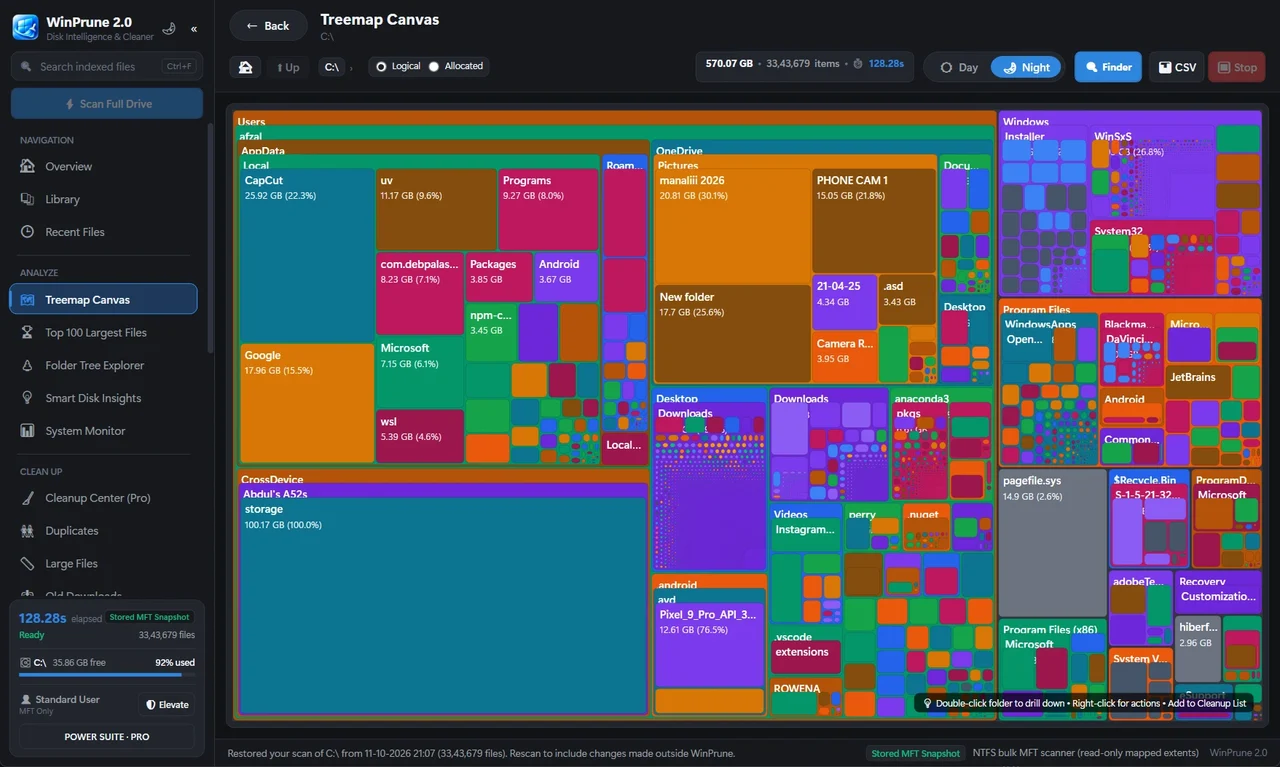
Guessing is how important files get deleted. A storage analyzer scans the whole drive and shows every folder by size on one map, so you can see in seconds whether the space is in videos, games, old downloads, a backup or an app cache. Then you delete the one thing that matters instead of a hundred small files.
Can Windows free up space automatically?
Yes. Storage Sense deletes temporary files, empties old items from the Recycle Bin and can clear old downloads on a schedule. Turn it on in Settings → System → Storage → Storage Sense, choose how often it runs, and decide whether it may touch your Downloads folder. It keeps the drive from filling up again, but it will not remove large personal files, so a scan now and then is still worth it.
Sources & further reading
Windows instructions checked against the official documentation linked here. Controls can vary by Windows version and device configuration.
Put your storage knowledge into practice.
Download WinPrune free for Windows 10 & 11, scan your drive, and see where your space goes.
Explore WinPrune Download free WinPrune Pro · $15.99 USD · One-time payment. No recurring billing.