Understand what the cache contains
A browser cache stores copies of website resources so the browser can reuse them. It is different from your saved passwords, browsing history, cookies, and the documents you downloaded. Clearing cached files can be useful when investigating a website problem or reviewing storage, but it is not a general repair for every Windows slowdown.
Clear only cached images and files in Edge
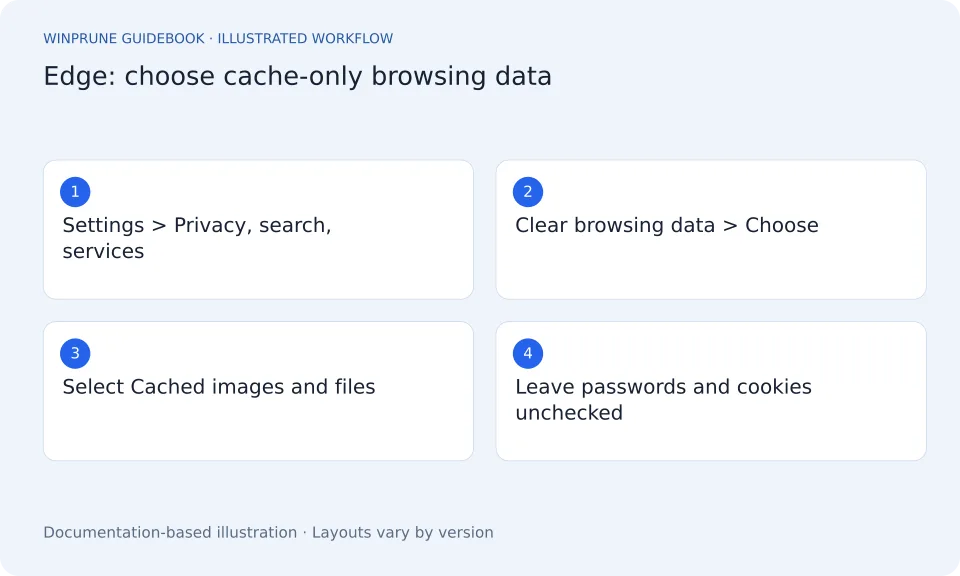
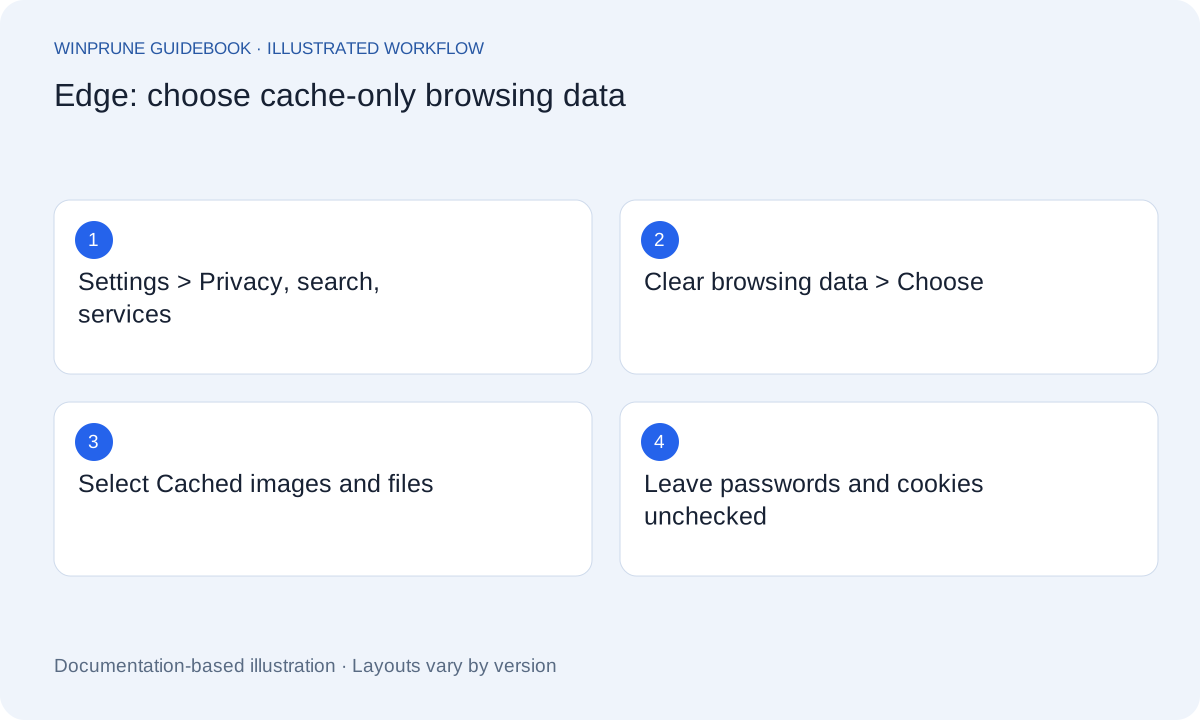
- In Edge, open Settings and more > Settings > Privacy, search, and services.
- Open Clear browsing data and choose Choose what to clear beside Clear browsing data now. You can also open Edge’s browsing-data dialog with Ctrl + Shift + Delete.
- Choose the Time range you mean to affect. For a complete cache review, inspect All time rather than assuming the existing range covers everything.
- Clear the other selections, then select Cached images and files. Keep Passwords, Cookies and other site data, Browsing history, Download history and Autofill form data unchecked for this cache-only action.
- Read the final selection and choose Clear now. Reopen the affected page and check the original problem.
| Data type | Cache-only choice | What removing it means |
|---|---|---|
| Cached images and files | Selected | Stored copies of website resources are removed |
| Cookies and other site data | Unselected | Removing these can sign you out |
| Passwords and autofill | Unselected | Removing these affects saved credentials or form data |
| Download history | Unselected | Removing the list does not remove downloaded files |
The menu sequence and data-type distinctions are based on Microsoft’s current Edge instructions. Read the Microsoft instructions.
Treat cookies and passwords separately
Cookies and site data can keep you signed in or store website preferences. Clearing them may change your browsing experience and require another sign-in. Saved passwords, payment information, and form data are separate choices. Do not leave every box selected simply because the dialog offers a convenient way to delete several categories.
Check the result rather than repeating blindly
After the cleanup, reopen the affected website and check whether its behavior changed. Cached resources can be downloaded again as you browse, so cache size may grow over time. That is expected behavior, not proof that your cleanup failed. Record the original problem and use a separate troubleshooting step if it persists.
Keep storage expectations realistic
Deleting download history removes entries from a list; downloaded files need to be reviewed in their actual folders. If the drive remains nearly full, return to Windows storage categories and investigate large personal files or installed applications. Do not manually delete the browser’s entire profile directory: it can contain information you meant to preserve, and the supported settings give you a more understandable choice.
Sources & further reading
Windows instructions checked against the official documentation linked here. Controls can vary by Windows version and device configuration.
Put your storage knowledge into practice.
Explore WinPrune and check the current download status. The installer and verified application instructions are still being prepared.
Explore WinPrune Download status WinPrune Pro · $15.99 USD · One-time payment. No recurring billing.